
Why the message is in spam with Yahoo Mail: verification diagnosis
Yahoo often files verification mail as spam due to sender reputation, filters, or client rules—check Spam first, then resend once, before switching addresses.
Read guideEditorial
Yahoo often files verification mail as spam due to sender reputation, filters, or client rules—check Spam first, then resend once, before switching addresses.
Read guide
Outlook.com junk folder hits usually come from sender reputation, filtering rules, or client settings—not from your willingness to wait. Use a safe retry order before you abandon the signup.
Read guide
If a legitimate verification email lands in Gmail spam, check spam first, then sender reputation and filters—do not treat temp mail as a guaranteed fix.
Read guide
When a Yahoo Mail verification code never arrives, separate sender rejection, filtering, lag, and expired OTPs—then follow a safe retry order.
Read guide
When an Outlook.com verification code never arrives, check sender rejection, delays, filtering, code expiry, and entry mistakes—in that safe order.
Read guide
When a verification code never arrives in Gmail, separate sender rejection, delay, filtering, expiry, and entry mistakes—then follow a safe retry order.
Read guide
Late Yahoo verification codes usually mean delivery lag or client deferral, not a broken OTP—retry in a safe order and stop when the sender invalidates the code.
Read guide
Late Outlook.com verification codes usually mean delivery lag, filtering, or a short TTL—not a broken inbox. Retry once, then fix the layer that failed.
Read guide
Late OTP mail usually means sender delay, Gmail filtering, or a short code TTL—not a broken inbox. Diagnose layers in order, then retry safely.
Read guide
Manual clear removes messages you can see in a temporary inbox; it does not rewrite the sender’s servers or guarantee every log is gone—check Mailby’s public privacy and retention pages for product specifics.
Read guide
After a temporary inbox expires, you typically lose access to stored messages and their From headers—treat sender addresses as gone from your view, and read the provider’s public retention policy for authoritative detail.
Read guide
After first receipt, the sender From address is part of stored message metadata until retention purge—Mailby does not keep it as a permanent public identity.
Read guide
Manual clear revokes access and schedules purge of message bodies; verify against Mailby’s public retention policy—not assumptions about instant global erasure.
Read guide
After a temporary inbox expires, you lose access to message bodies; do not treat unpublished internals as retention promises—check public policy.
Read guide
After a temporary inbox first receives a message, the body stays only until retention ends or you delete—receive lease and retention are separate clocks.
Read guide
Manual clear removes inbox access and schedules purge of message bodies and attachments—download anything you need first; retention clocks are not a backup service.
Read guide
After a temporary inbox expires, attachments become inaccessible with the message—download anything you need before the lease ends.
Read guide
Attachments follow the inbox retention clock: available while stored messages remain, then purged with the mailbox. Download anything you must keep before deletion.
Read guide
For a one-time webinar, a temporary receive-only inbox works when join links arrive inside the lease—use a durable address if you need replays, certificates, or a lasting attendee account.
Read guide
For travel-site signups tied to bookings, use a durable address—itineraries and changes arrive late. Temp mail fits only account-free browsing trials.
Read guide
Use temporary email only for throwaway retail signups; choose a durable address when receipts, returns, or loyalty continuity matter.
Read guide
Use a temporary inbox for a one-off webinar trial if you only need the join link—switch to a durable address when the platform becomes your event stack.
Read guide
Prefer a durable email for travel-site free trials that can turn into bookings, receipts, and schedule-change alerts; use temp mail only for pure brochure peeks.
Read guide
Use a durable address if the retail free trial becomes a paid membership or needs cancellation mail; use temporary only for one-shot samples with no account value.
Read guide
For a paid webinar platform purchase, use a durable email you monitor—receipts, access links, and refunds arrive later; temporary inboxes are only for free throwaway sessions.
Read guide
Use a durable email for a first travel-site purchase so tickets, changes, and disruption notices still reach you—reserve disposable addresses for browsing only.
Read guide
For a retail store first purchase, use a durable address so receipts, shipping updates, and returns remain reachable—reserve temp mail for browse-only interest.
Read guide
Design Selenium waits for delayed verification email with explicit timeouts, polling assertions, and teardown—without relying on an assumed CI mail API.
Read guide
In Playwright, poll a mailbox you control with bounded retries and clear assertions—never sleep forever—and treat temporary inboxes as manual aids, not a silent CI API.
Read guide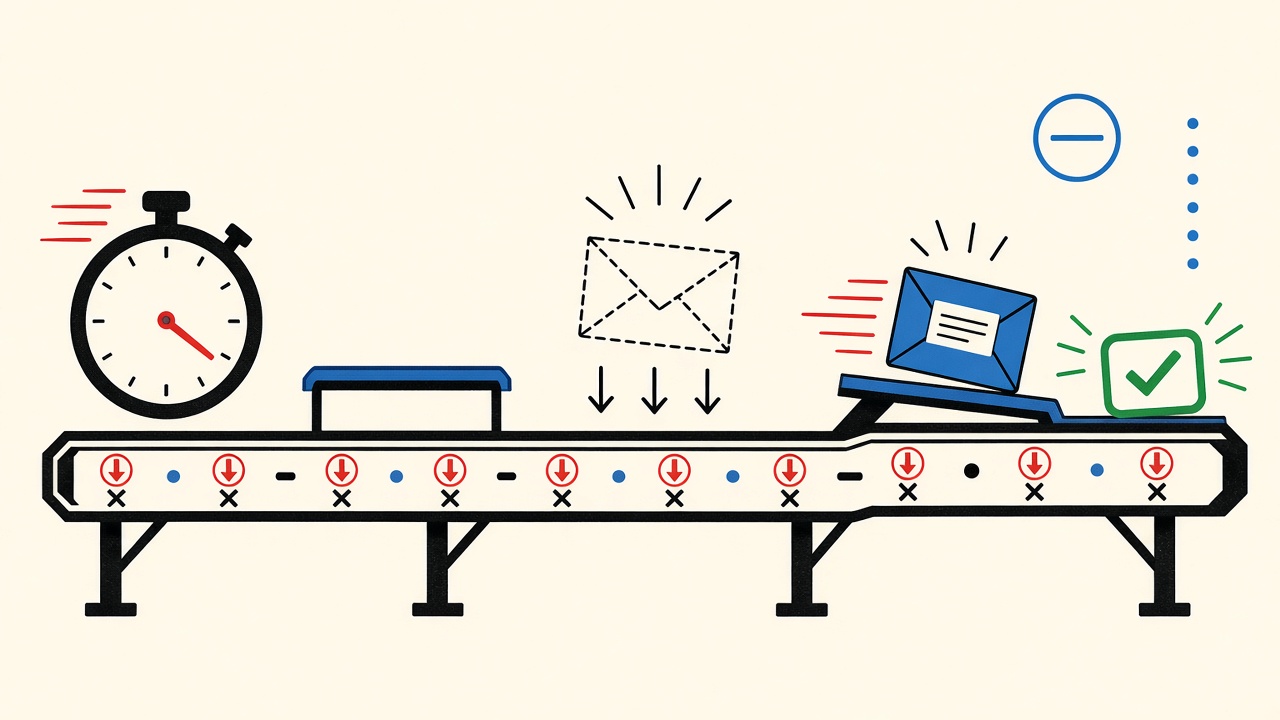
In Cypress, poll for verification mail with bounded retries and clear assertions—never cy.wait(fixed) alone—and tear down inboxes after the run.
Read guide
Checkout confirmation emails can load tracking pixels that signal open time and client hints—use a receive-only inbox with cautious preview to limit linking that activity to your primary identity.
Read guide
Newsletter tracking pixels can reveal opens and device hints via remote images—a temporary inbox reduces address linkage but does not erase every signal.
Read guide
During community registration, tracking pixels can signal opens and device hints—know what a temporary inbox can and cannot hide.
Read guide
Checkout tracking links can expose clicks, device signals, and campaign IDs; a temporary inbox reduces address reuse but does not stop link trackers.
Read guide
Newsletter tracked links can reveal opens, clicks, device hints, and list identity—a temporary inbox limits address reuse, not click telemetry.
Read guide
Clicking community invite links often phones home with tokens and device signals; a temporary inbox reduces address linkage but not click tracking.
Read guide
Assert welcome email generation, SMTP handoff, and inbound delivery in Next.js with a receive-only mailbox—and clean up test identities afterward.
Read guide
Assert Laravel welcome mail generation in automated tests, then manually confirm SMTP handoff with a receive-only inbox—without treating Mailby as a CI API.
Read guide
Assert Django welcome mail in the test outbox first, then manually confirm SMTP delivery to a receive-only inbox—separate generation, handoff, inbound, and UX layers.
Read guide
Assert signup verification email in Next.js by separating app send, SMTP handoff, inbound delivery, and UX—use a receive-only mailbox and tear down test users.
Read guide
Build a minimal Laravel test for signup verification email: assert generation, SMTP handoff, inbound delivery, and cleanup—without assuming a CI mail API.
Read guide
Assert Django signup verification email generation, SMTP handoff, and UX separately; use a receive-only inbox for manual delivery checks.
Read guide
Authorize a Next.js password-reset email test by separating generation, SMTP handoff, inbound delivery, and UX—with clear assertions and cleanup.
Read guide
Assert Laravel password-reset mail generation locally, then verify SMTP handoff and inbound UX with a receive-only mailbox—without treating consumer inboxes as CI.
Read guide
Assert Django password-reset mail generation in-process first; use a receive-only inbox only for manual SMTP handoff checks you authorize.
Read guide
Use a receive-only temporary inbox when the signup is disposable QA; switch to a durable alias when you need password reset or account continuity.
Read guide
Use a disposable receive-only inbox for a one-shot product demo signup if you will not need recovery later; switch to a durable alias when the trial becomes an account you keep.
Read guide
Use a disposable inbox for a one-off newsletter sample; switch to a durable alias if you need archives, replies, or paid upgrades later.
Read guide
Use a receive-only temporary inbox for one-time signup tests; switch to a durable address when recovery, receipts, or warranties matter.
Read guide
Use a receive-only temporary inbox for a one-time product demo signup when you will not need recovery later; switch to a durable address when continuity matters.
Read guide
Use a temporary inbox for a one-off newsletter sample when you need no replies or recovery; switch to an alias if you might keep the list.
Read guide
Yes for throwaway verification tests you will never reopen; no when the signup becomes a client tool, billing account, or recovery path.
Read guide
Use a temporary receive-only address for a one-shot product demo if you only need the invite or OTP—switch to a durable mailbox when the vendor becomes a client tool.
Read guide
Use a temporary inbox for a one-shot newsletter sample; switch to an alias if you might keep the list, claim a coupon, or reply.
Read guide
Webmail usually prefers the HTML part of multipart/alternative—validate both parts, avoid contradictory content, and preview safely before trusting links.
Read guide
Mobile clients pick one multipart/alternative part—usually HTML when present. Build sane text parts and avoid relying on a single raw MIME tree.
Read guide
Desktop clients pick one part from multipart/alternative—usually the richest safe type. Broken boundaries and mismatched content create blank or misleading views.
Read guide
Inline images in webmail depend on correct multipart/related CID links—broken Content-ID references show empty slots, and remote images raise privacy risks beyond CID parts.
Read guide
Mobile clients often block or detach CID inline images—build multipart fixtures deliberately, test with images off, and keep critical content in text.
Read guide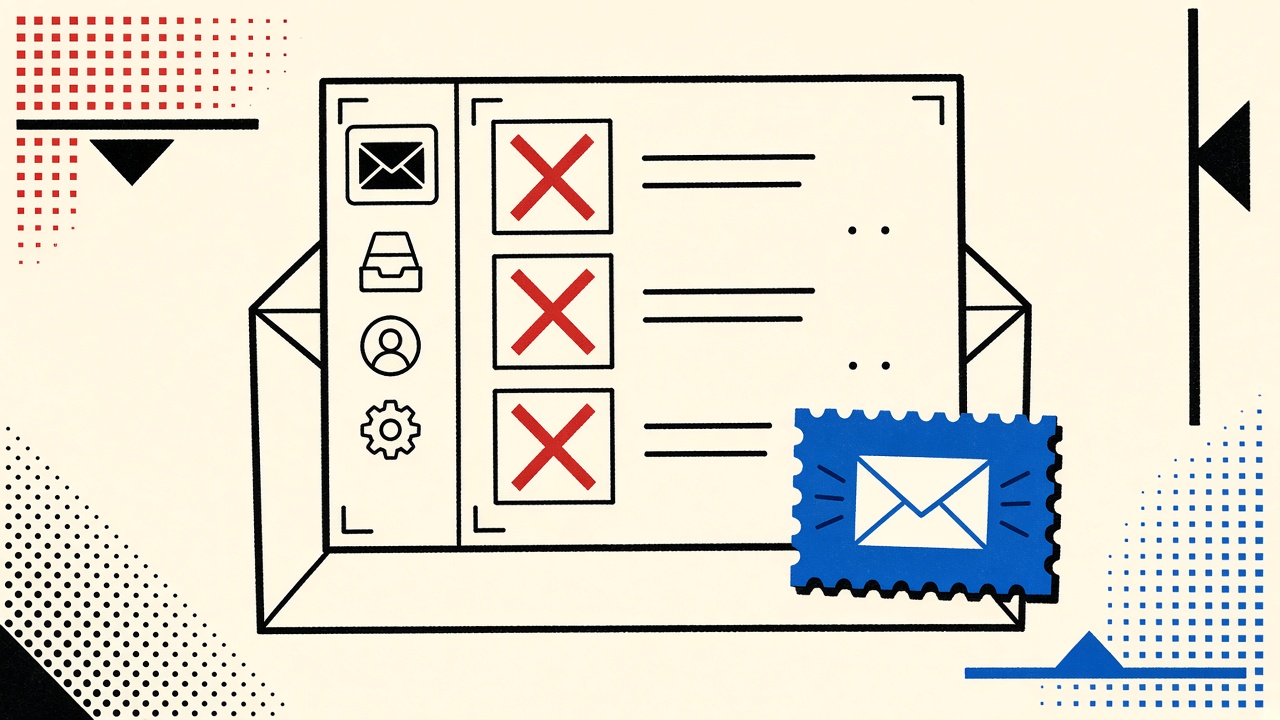
Inline images need correct MIME multipart/related and Content-ID links; broken CIDs show empty frames—test fixtures before blaming the client.
Read guide
Webmail must decode base64 MIME parts safely—valid fixtures render; broken padding, wrong types, and active content should not execute.
Read guide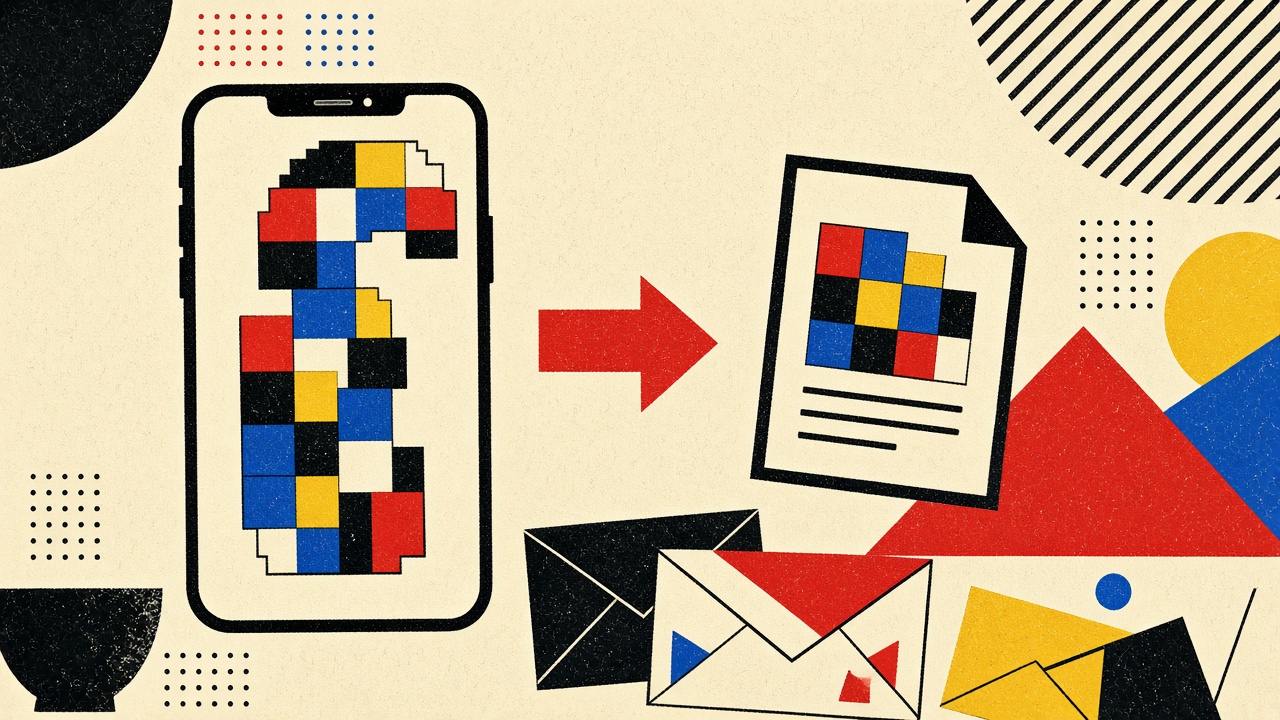
How mobile email clients render base64 attachments: valid MIME parts, broken padding, declared types, and safe preview practices.
Read guide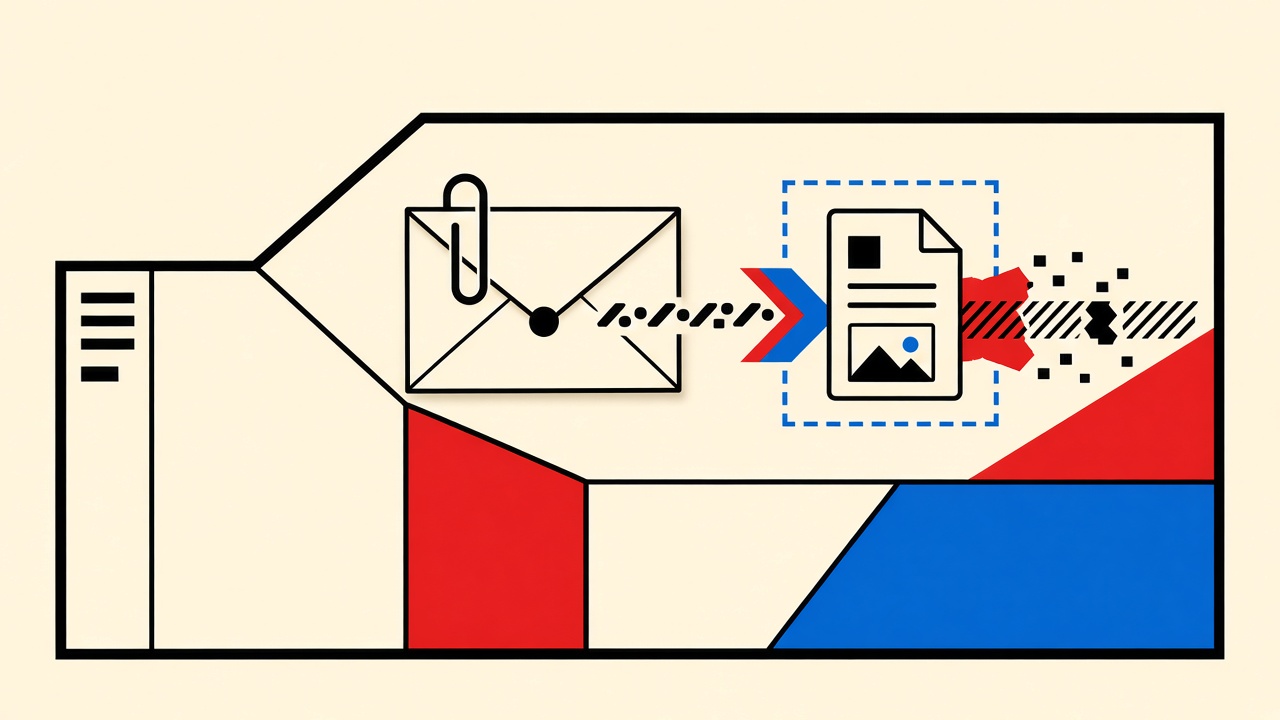
Desktop clients decode base64 MIME parts using Content-Type and Content-Disposition—broken padding or wrong types show as garbage or blocked attachments.
Read guide
Give each Selenium run a unique receive-only email identity, assert the message, then tear down—so parallel suites stop stealing each other’s OTPs.
Read guide
Give each Playwright run a unique receive identity, assert on extracted OTPs with timeouts, and tear down inboxes so parallel workers never share mail.
Read guide
Give each Cypress run a unique email identity, assert inbound mail with clear timeouts, and tear down users so parallel specs do not collide.
Read guide
Use a temporary inbox for a one-time product trial when you will not need recovery, invoices, or replies—otherwise choose a durable alias.
Read guide
Use a temporary inbox for newsletter discovery when you only need a short sample window; switch to an alias if you might keep or reply later.
Read guide
No for stores you will reorder from, track, or dispute later. Temporary inboxes fit one-shot merchant checks—not order history and recovery.
Read guide
Plus addressing filters trial mail well but still ties to your real account—use a disposable inbox when you want separation, or a durable alias when you might convert.
Read guide
Plus addressing helps filter newsletter discovery mail but still ties to your primary identity—use it for trusted experiments; switch to disposable receive-only when you want a hard separation.
Read guide
Plus addressing helps filter shopping mail on a durable mailbox, but merchants may strip tags—use real aliases or temp mail only for throwaway shops.
Read guide
Use an email alias for a product trial you might keep; use a temporary receive-only inbox only when you are sure you will never need recovery, replies, or receipts later.
Read guide
Email aliases suit newsletter discovery when you need durable unsubscribe and recovery; temporary inboxes win for one-shot samples with no future value.
Read guide
Email aliases fit long-term shopping when you need durable recovery and spam control—temporary inboxes do not; pick aliases that can still receive resets.
Read guide
A temporary email address is for receiving mail — not for proving who can read it. Here is how Mailby separates address knowledge from inbox access.
Read guide
Treat urgent password-reset verification demands as untrusted until you verify the sender without clicking; a disposable inbox does not make messages safe.
Read guide
Treat urgent parcel verification emails as untrusted until you verify via the carrier’s official site or app—never via the message’s panic links.
Read guide
When a new account signup demands urgent verification, pause, verify the channel offline, and never treat a disposable address as proof the message is safe.
Read guide
Treat unexpected QR codes in password-reset emails as hostile until you verify the sender, domain, and out-of-band context—never scan first.
Read guide
Do not scan unexpected QR sign-in codes on parcel emails—verify the carrier in the official app or site, and never treat a disposable inbox as proof the message is safe.
Read guide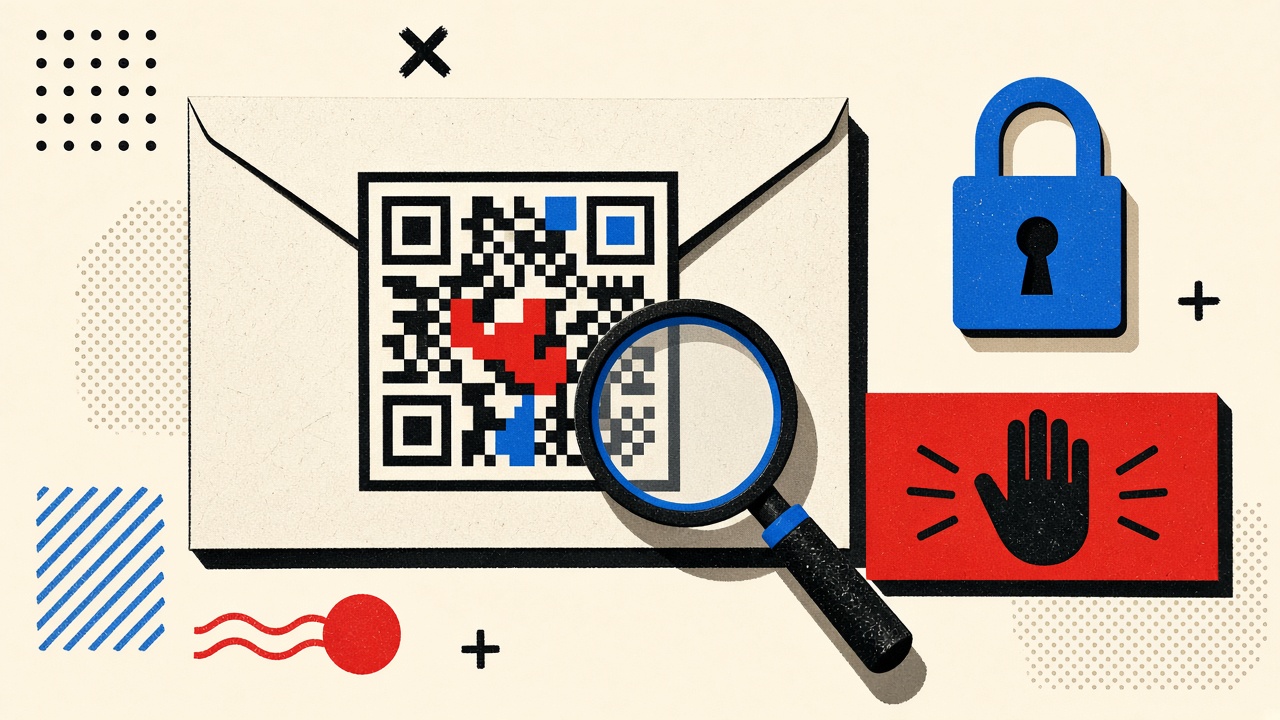
Verify QR sign-in flows without blind scanning: check issuer context, destination domain, and urgency cues before you authenticate a new account.
Read guide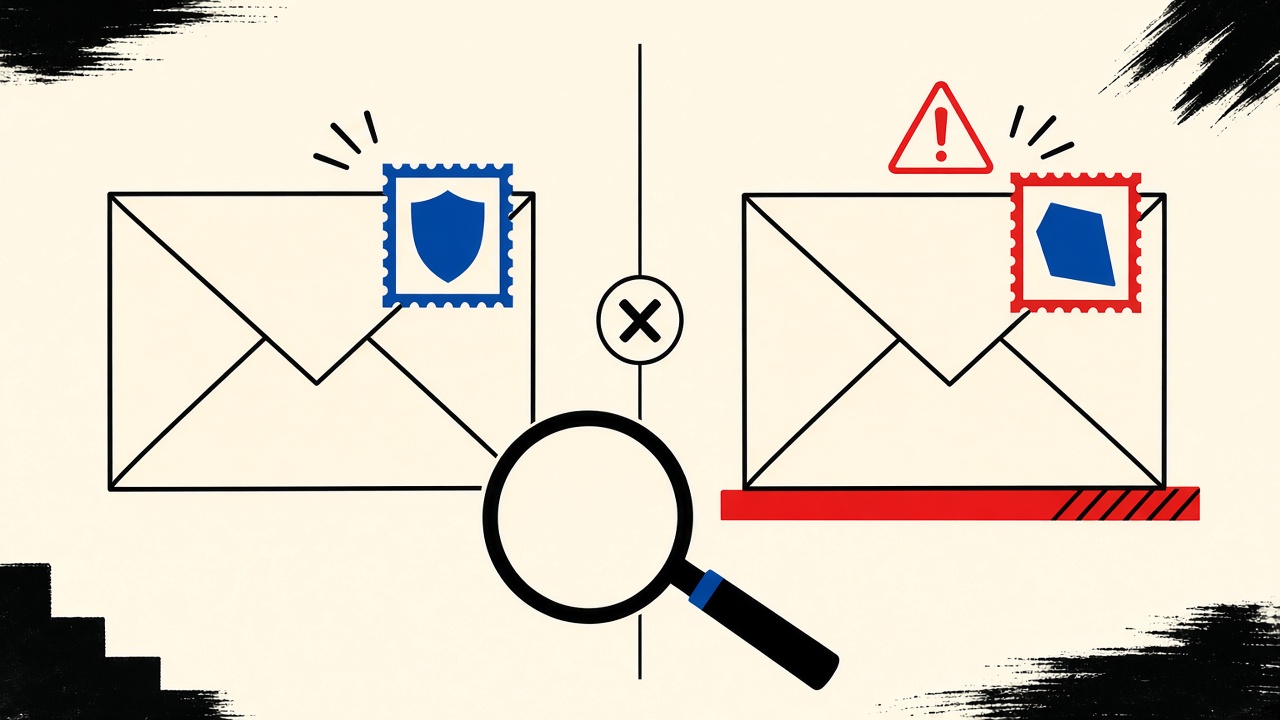
Before clicking a password-reset link, compare the visible From domain to the real site hostname character by character—lookalikes exploit urgency, and a disposable inbox does not make the message safe.
Read guide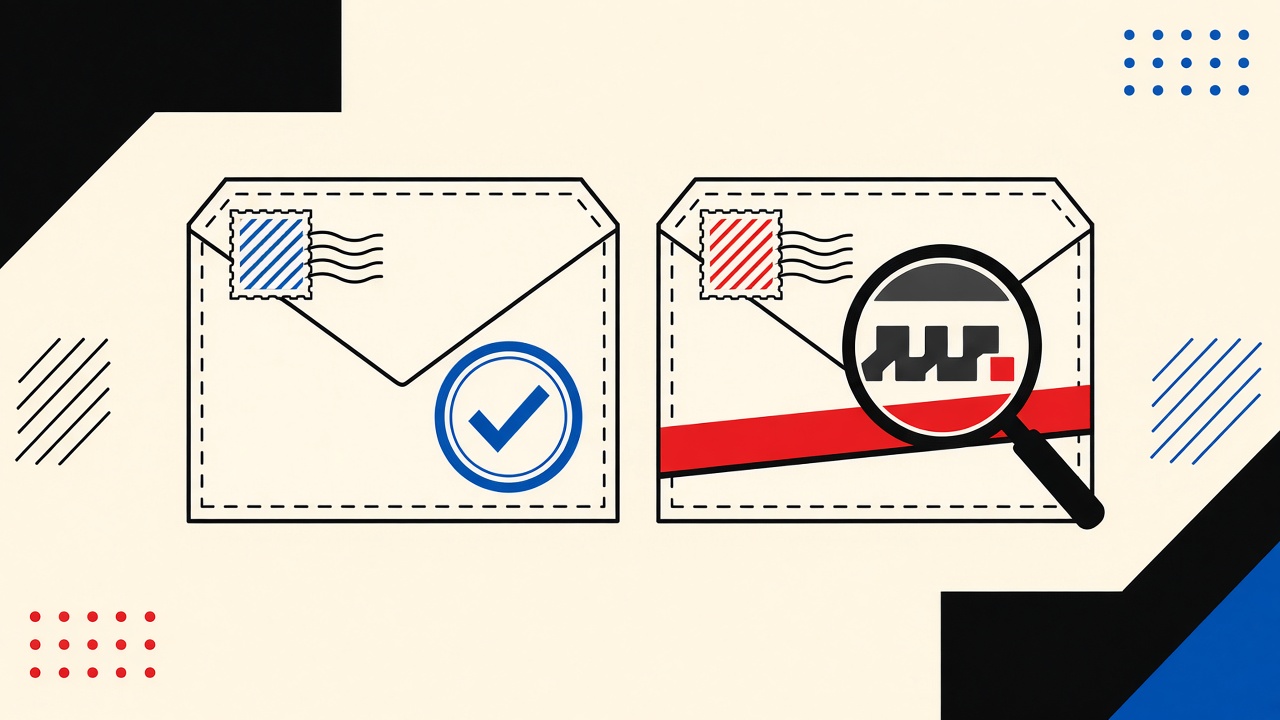
Treat unexpected parcel emails with lookalike domains as hostile until verified—never click tracking links; confirm via the carrier’s official app or site.
Read guide
Before you click a signup verification link, compare the sender domain to the site you typed—lookalikes exploit urgency, and a disposable inbox does not make them safe.
Read guide
Use a durable address for social profiles you will reinstall after a new phone; temporary inboxes expire and break recovery.
Read guide
Do not use a temporary inbox as the recovery email on a social profile you may need again—two-factor resets require durable mailbox access.
Read guide
If you might reset a social profile password later, do not register with an expiring temporary inbox—use a durable address or alias you control.
Read guide
For online shopping accounts you may reopen after a device replacement, choose a durable email—temporary inboxes expire and block recovery.
Read guide
For shopping accounts that may need a two-factor reset, choose a durable email—temporary inboxes expire and leave you locked out.
Read guide
Do not use a temporary inbox for a shopping account you may reset later—password recovery needs a mailbox that still exists when you lose access.
Read guide
Do not use an expiring temporary inbox for a discussion forum you might recover after a device replacement—choose a durable address or alias.
Read guide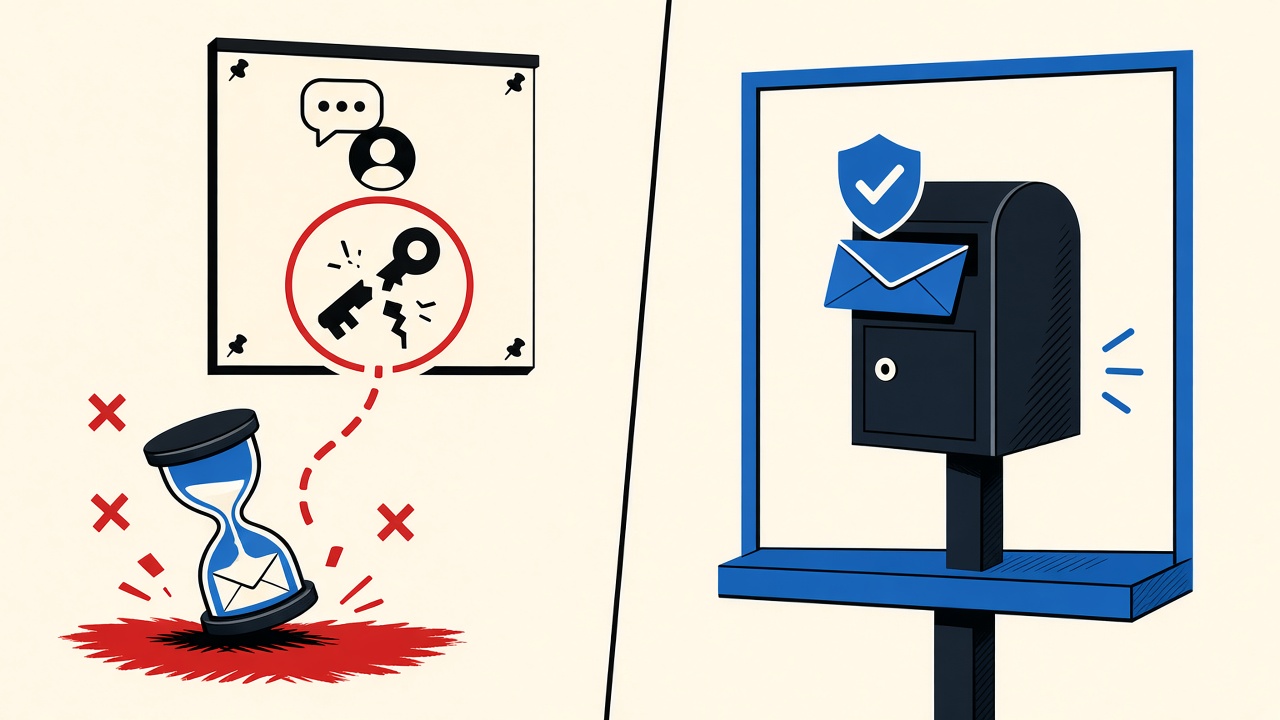
Do not use an expiring temporary inbox as the recovery email for a discussion forum you might keep—two-factor and password resets fail when the mailbox is gone.
Read guide
Pick a durable address for discussion forums you might revisit—lost-password mail fails if your disposable inbox already purged.
Read guide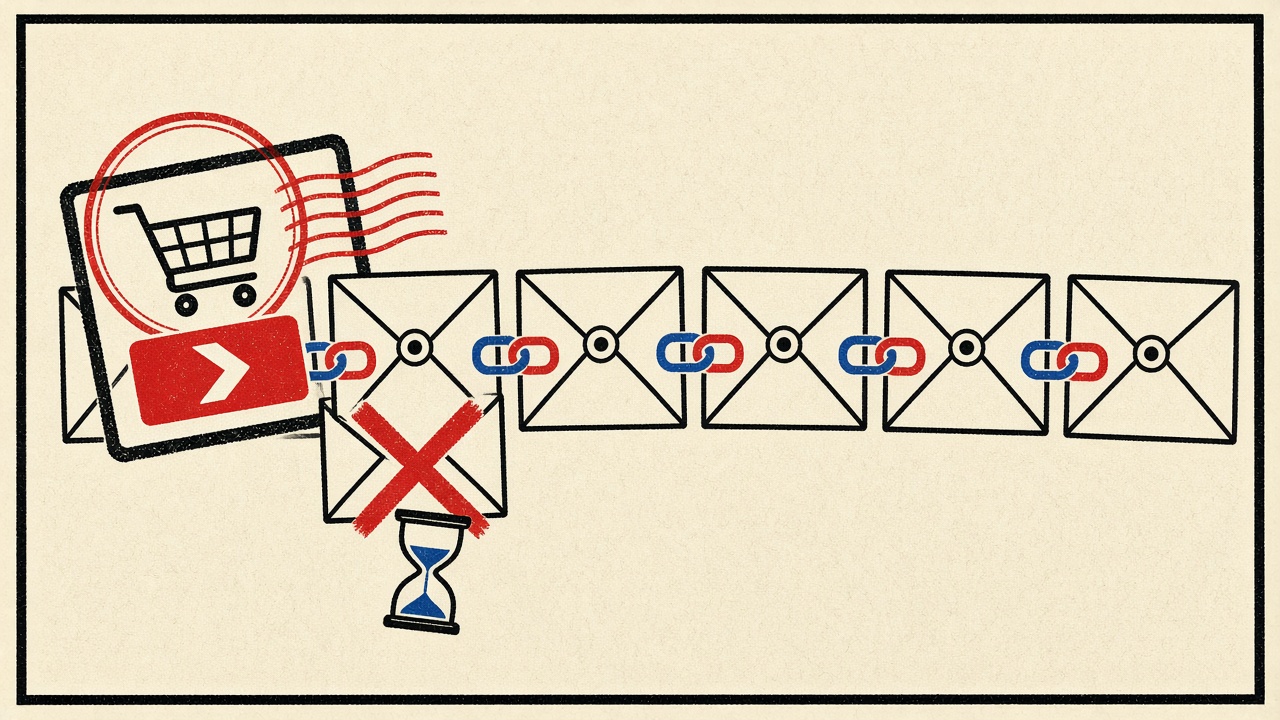
Reusing one email across checkouts lets merchants and partners stitch your purchase graph; isolate low-trust shops with aliases or temporary inboxes.
Read guide
Reusing one email across newsletters links your identity for ESPs and brokers—use a disposable or unique alias per signup when you do not need continuity.
Read guide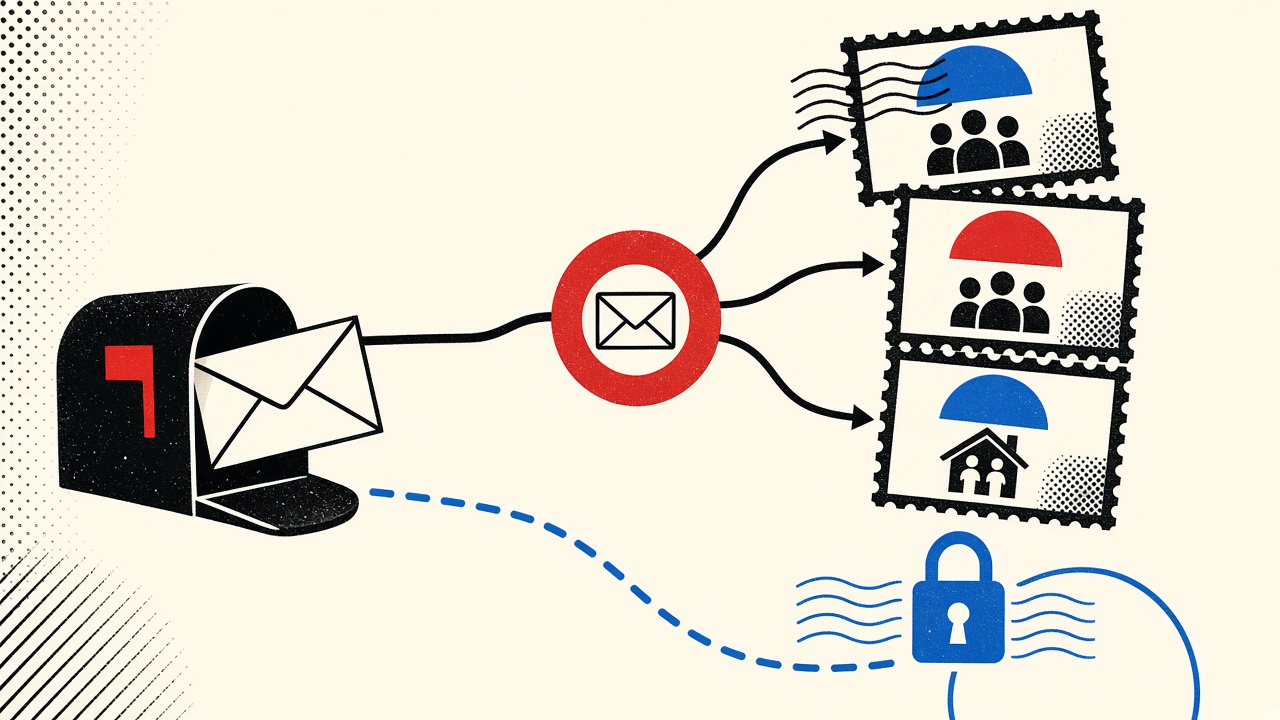
Reusing one email across community signups lets operators and brokers correlate identity; a temporary inbox reduces reuse but not on-site tracking.
Read guide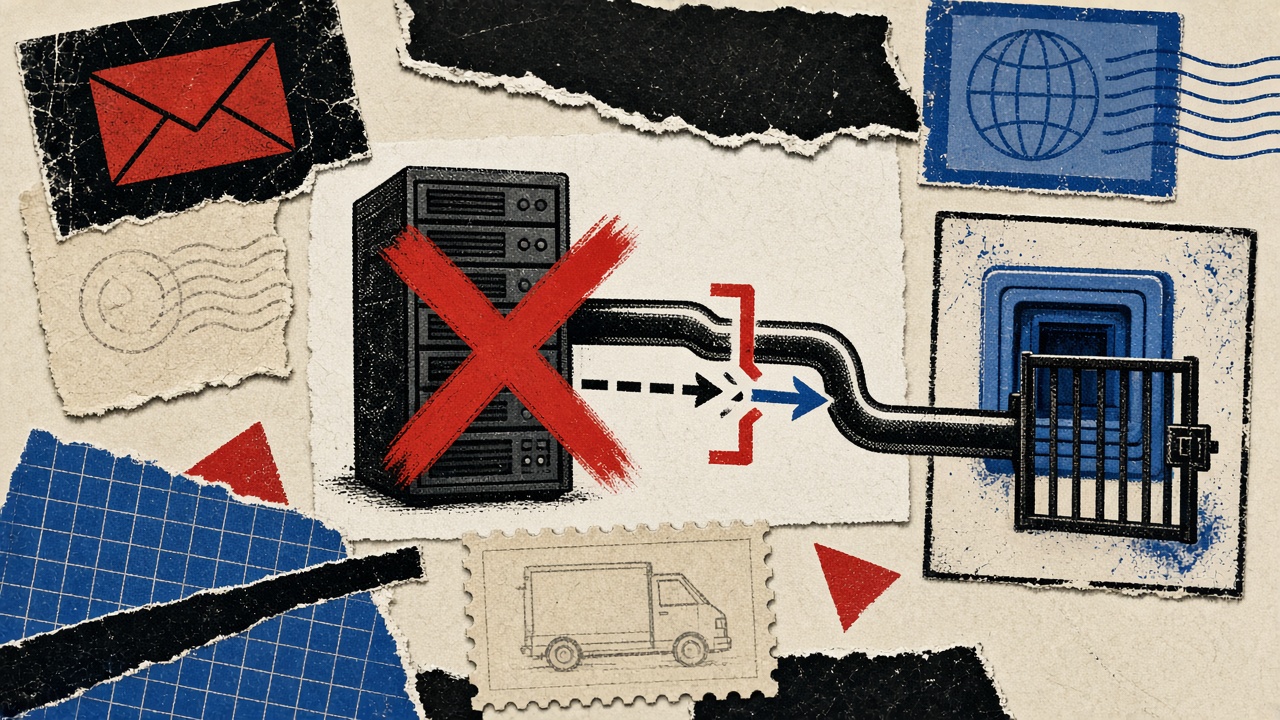
When port 25 fails during an initial inbound-mail deployment, find the earliest broken hop with measurable checks, then roll back safely.
Read guide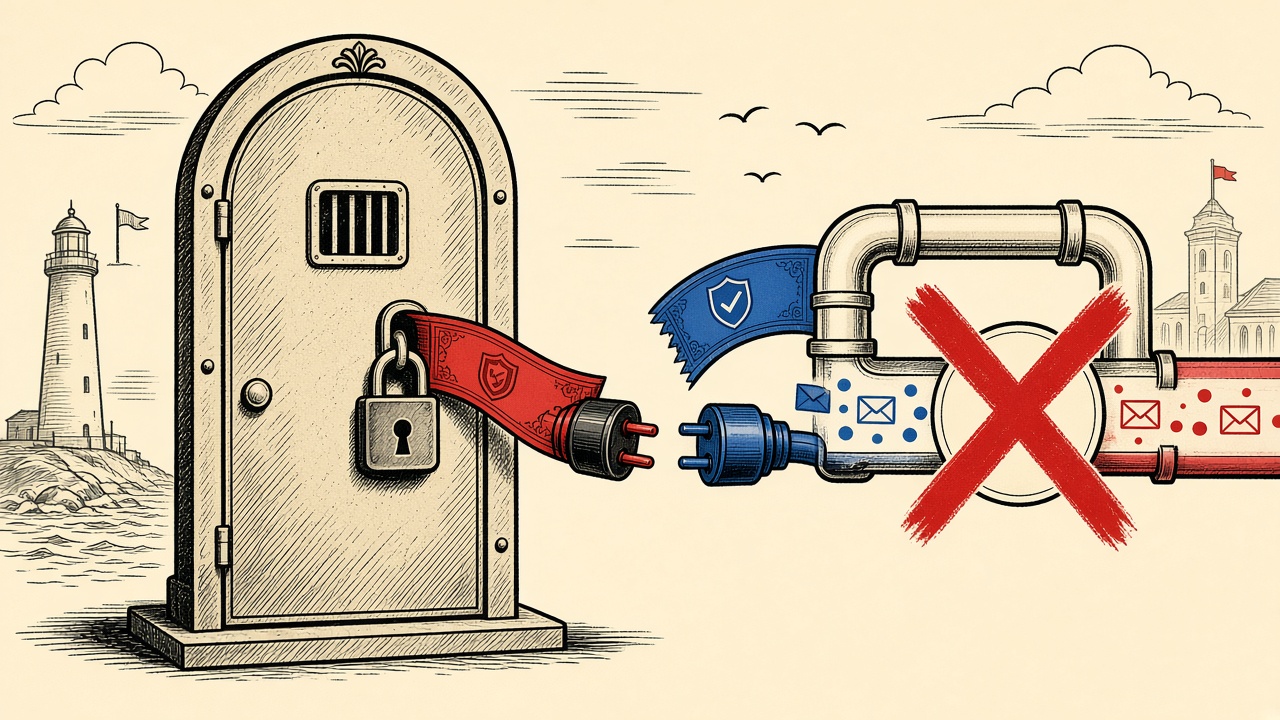
When inbound mail fails after a TLS certificate change, isolate DNS, port 25 reachability, TLS handshake, and MTA config before rolling certificates back.
Read guide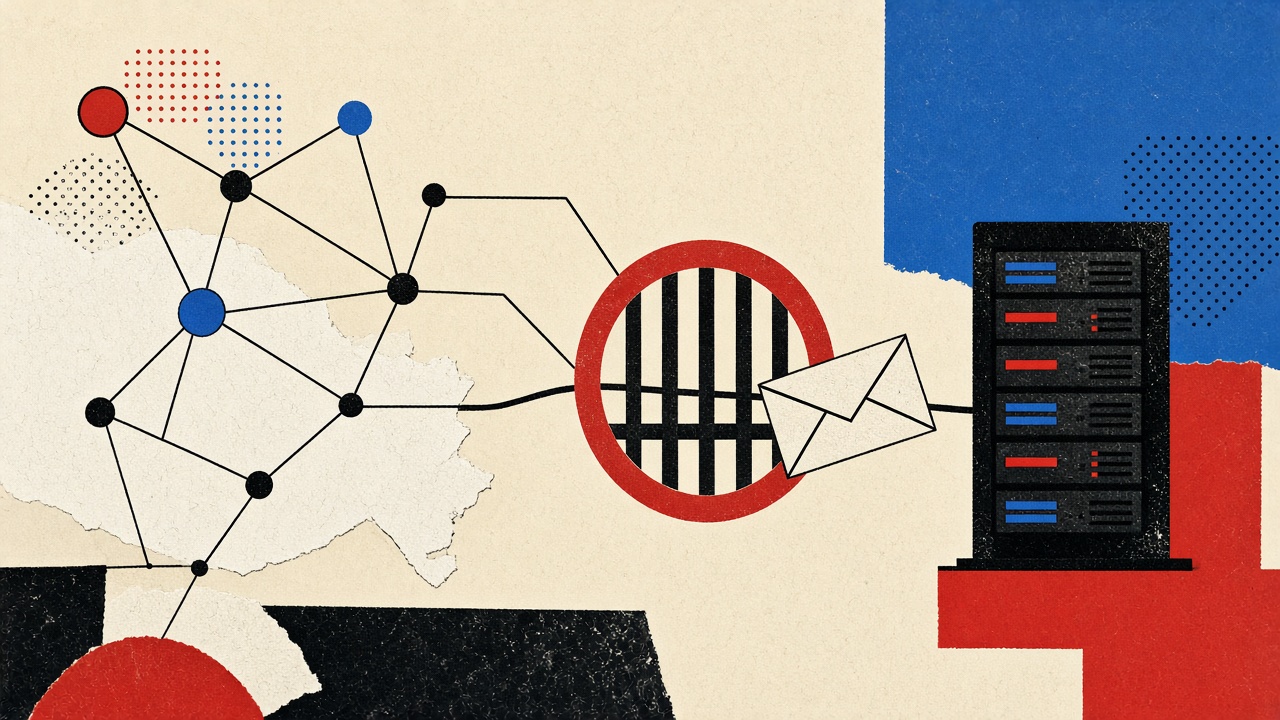
When port 25 fails during a DNS cutover, find the earliest broken hop—DNS, firewall, listener, or greylist—then roll back MX safely.
Read guide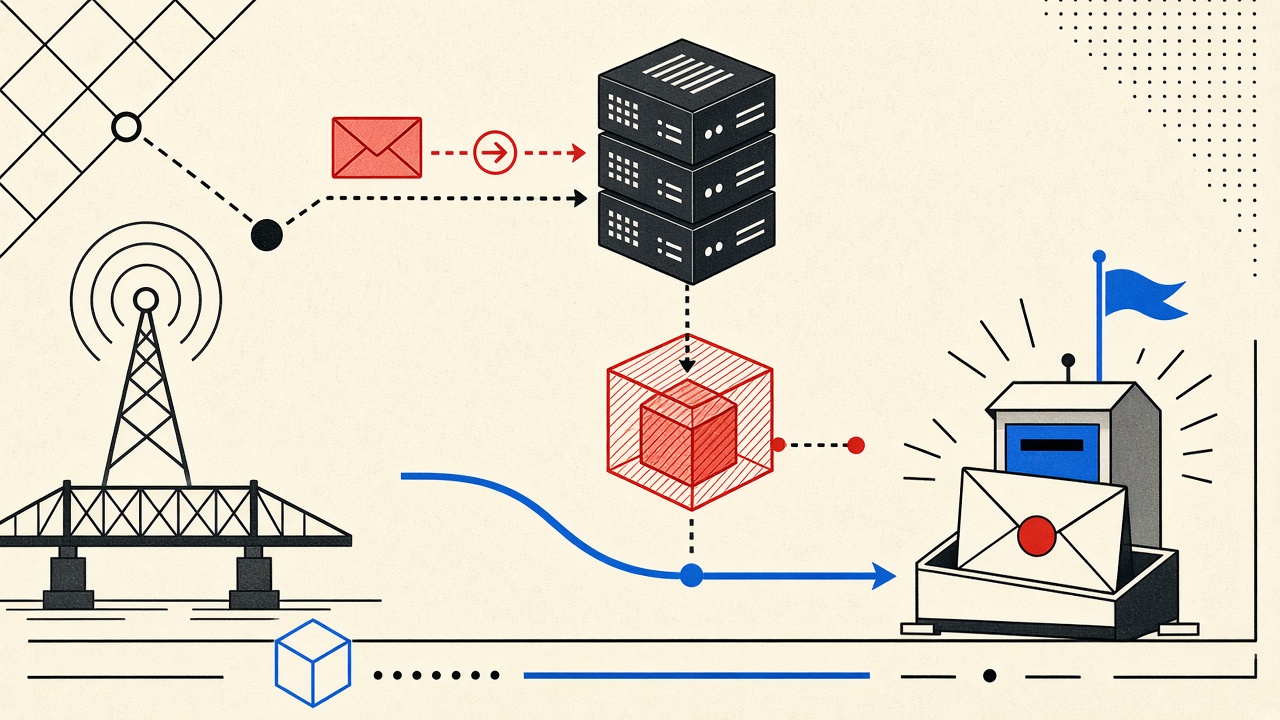
After an inbound MX migration, stale DNS caches can send mail to the old host—verify TTL, dig from multiple resolvers, and roll back only with measured signals.
Read guide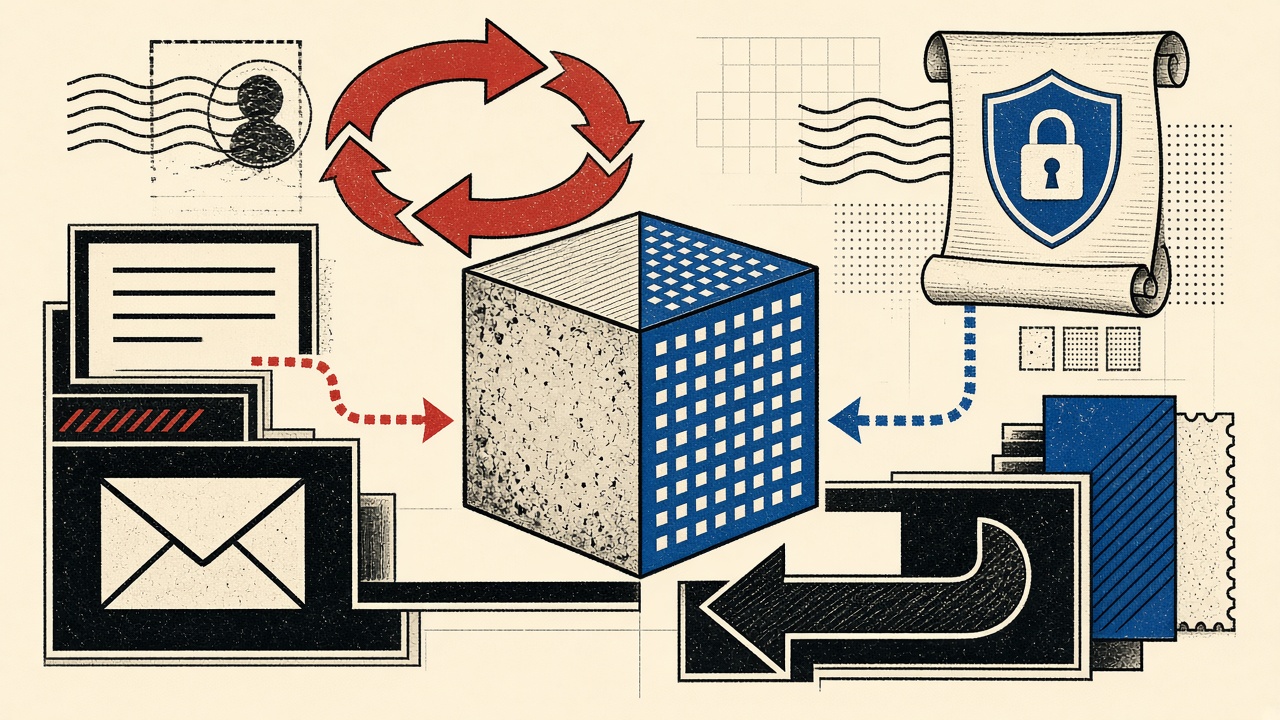
When inbound mail breaks after MX migration plus a TLS certificate change, isolate DNS cache staleness from cert mismatch hop-by-hop before you rollback.
Read guide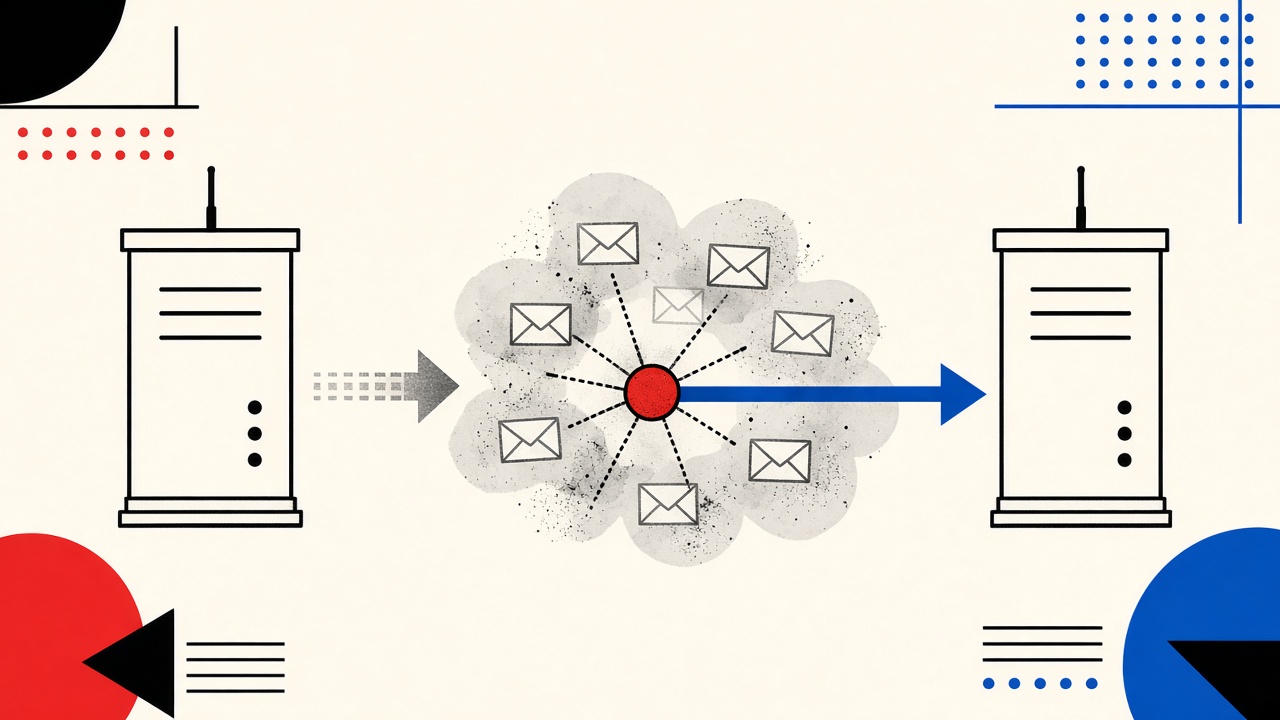
After an MX cutover, stale DNS caches can split inbound mail between old and new hosts—verify TTLs, query multiple resolvers, and keep dual-receive until caches drain.
Read guide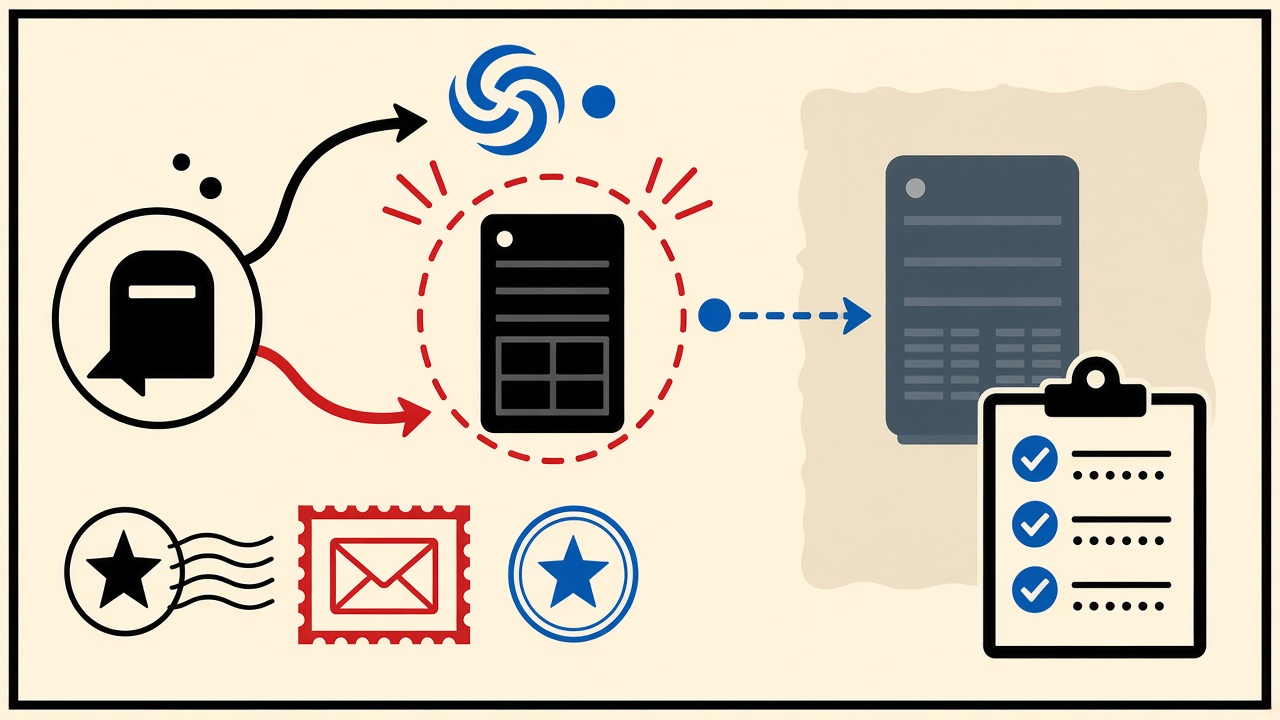
If inbound mail fails after deploy, verify MX hosts and priority with dig before touching app code—rollback DNS when the target is wrong.
Read guide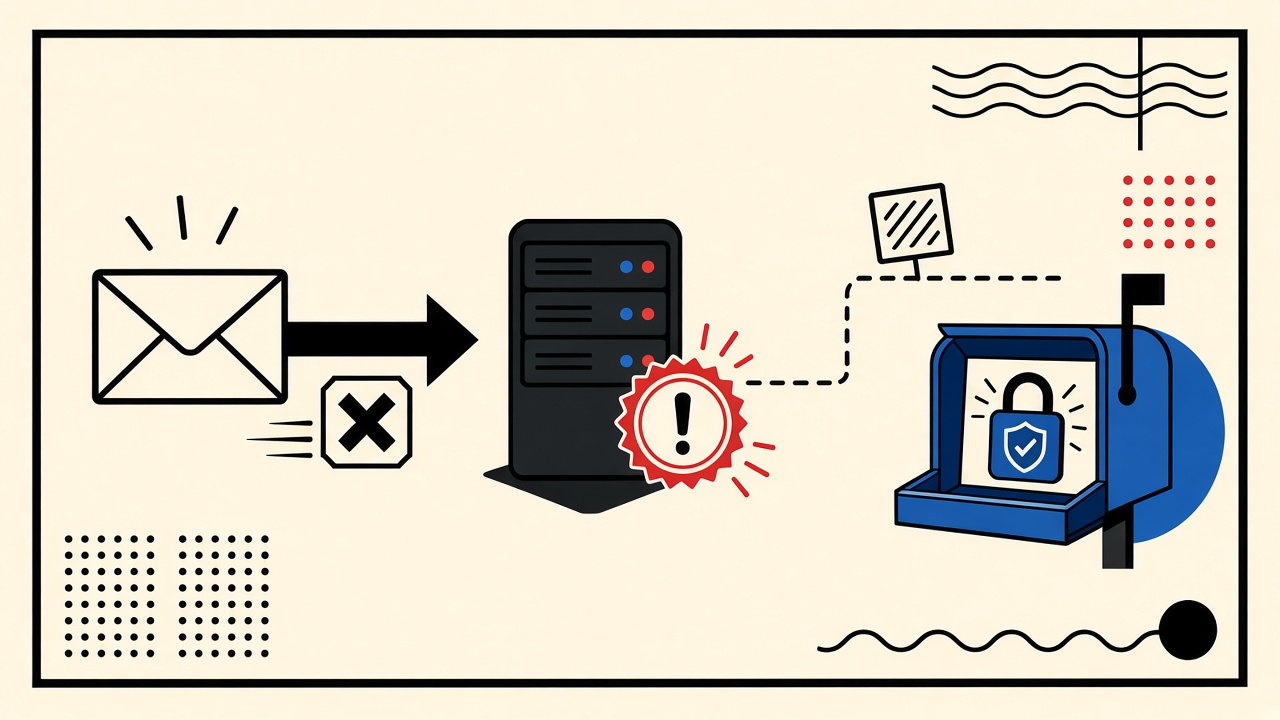
When inbound mail breaks during a TLS certificate change, verify MX targets and TLS on the mail hostname separately—then roll back the earliest wrong hop.
Read guide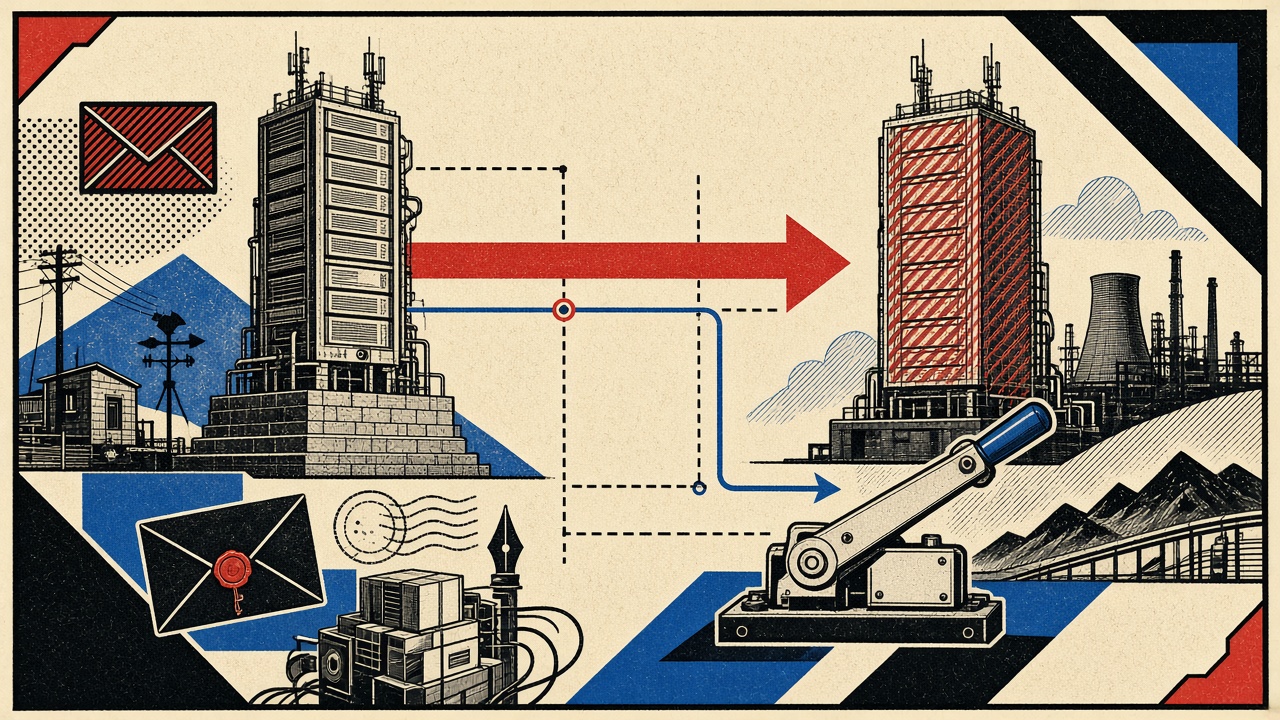
If inbound mail fails after a DNS cutover, verify live MX targets with dig, compare TTL propagation, and roll back the old MX before chasing app bugs.
Read guide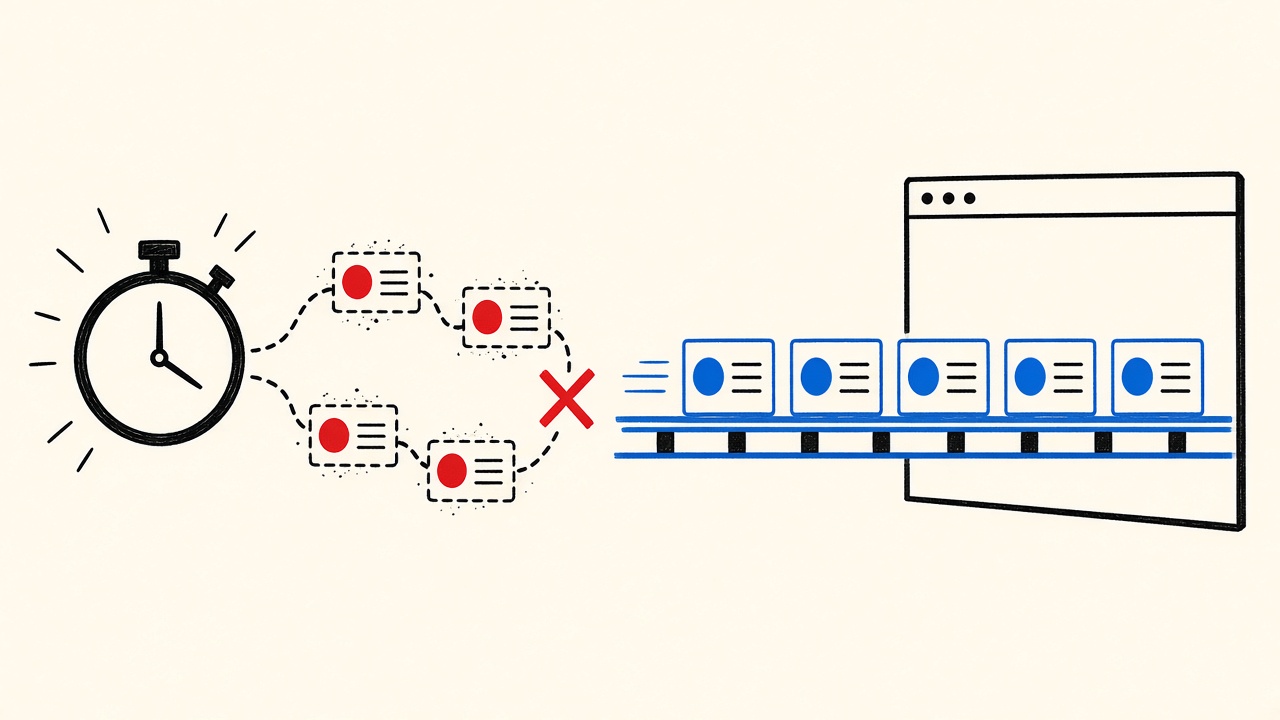
Replace fixed sleeps with event-driven waits, bounded retries, and clear teardown when Selenium tests depend on inbound OTP email.
Read guide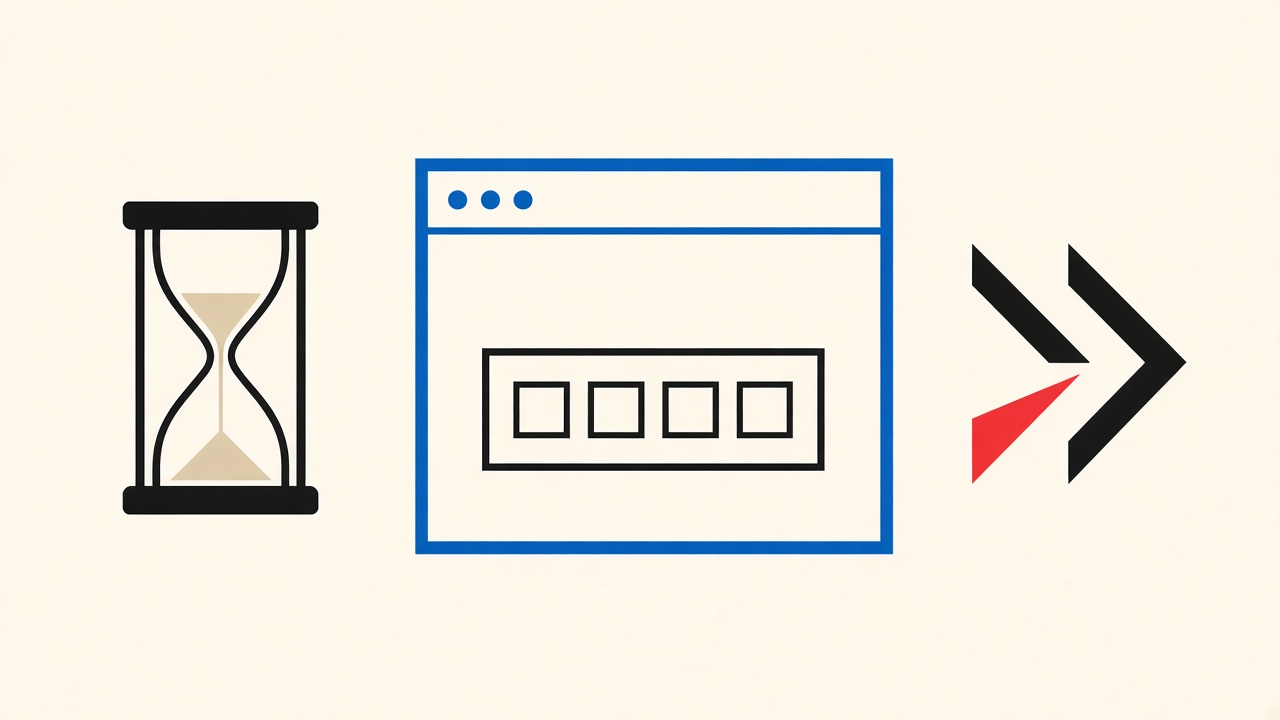
Stabilize Playwright OTP tests with explicit waits, single-flight resends, and teardown—not fixed sleeps against a temporary inbox.
Read guide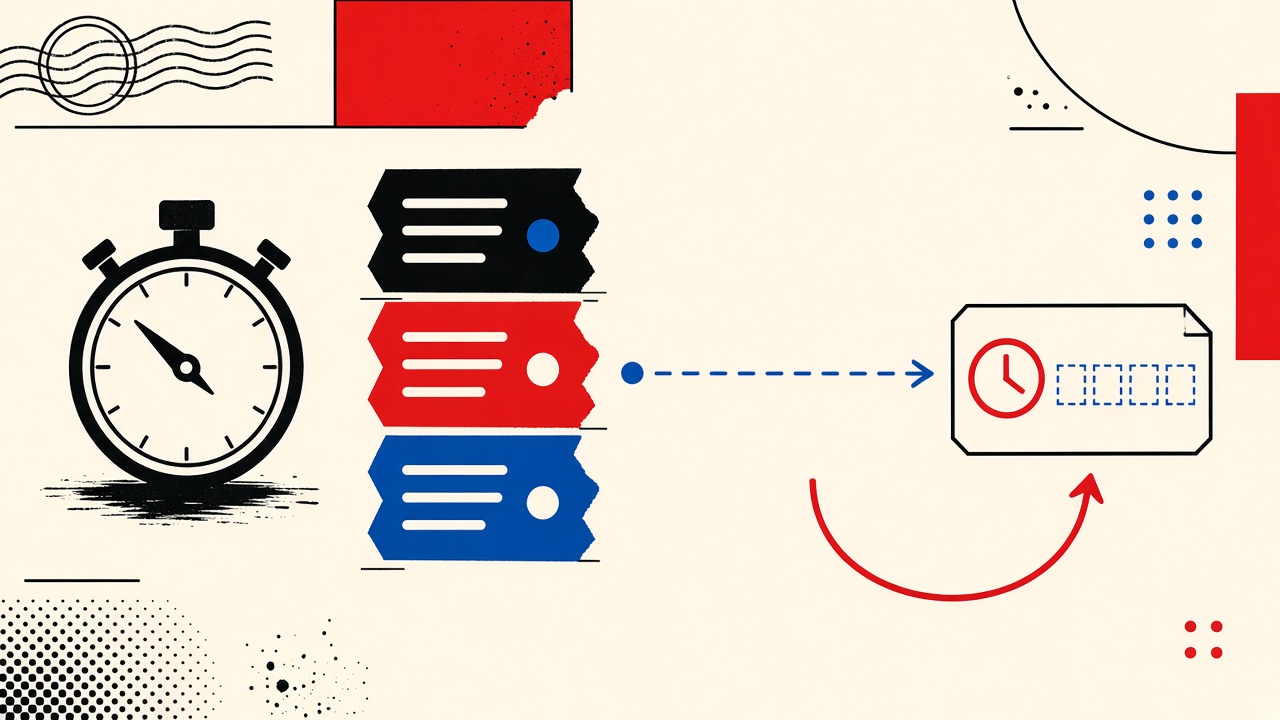
Stop flaky Cypress OTP tests by waiting on deterministic mail capture or API polling with bounded retries—not fixed sleeps against public inboxes.
Read guide