
Verification code delivery
Why is the verification message in Gmail spam?
If a legitimate verification email lands in Gmail spam, check spam first, then sender reputation and filters—do not treat temp mail as a guaranteed fix.
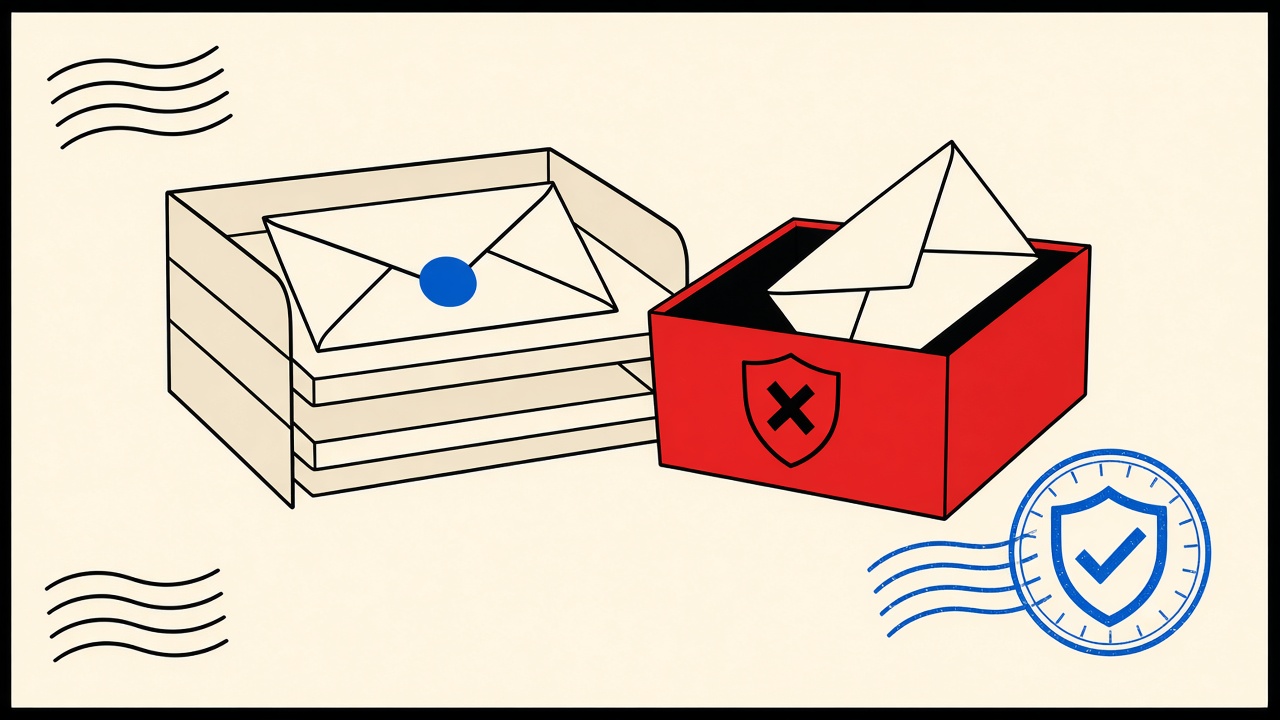
If a legitimate verification email is “missing” in Gmail, check Spam (and Promotions) before anything else. Most user-visible failures are client filtering or delayed delivery—not a broken code generator. Temporary receive-only inboxes can help you test whether the sender can deliver at all, but they do not force Gmail to unspam a message and they do not work with every provider.
This diagnosis separates sender rejection, delivery lag, Gmail filtering, code expiry, and user entry mistakes—then gives a safe retry order and a clear stop condition.
Gmail context and boundaries
You are waiting for a verification, magic link, or OTP that you know should arrive. Gmail shows Primary, Promotions, Updates, Forums, and Spam. Verification mail often looks promotional to classifiers: short body, tracking links, shared ESP infrastructure, or a new sending domain.
Out of scope for this article:
- Hacking or bypassing Gmail’s spam systems
- Claiming Mailby “fixes” deliverability into Gmail
- Guaranteeing that a disposable domain will be accepted by the service that sent the code
Mailby’s Quick Inbox is a receive-only destination on mailby.app. Use it as an optional test sink when you control the signup and want to see whether mail leaves the sender. It is not a promised cure for blocked or filtered Gmail paths. Product facts: /how-it-works, /security.
What “in spam” usually means
When people say “the message is in spam,” they usually mean one of these:
- True Spam folder placement — Gmail classified it as unwanted.
- Promotions / Updates tab — not Spam, but not Primary; easy to miss on mobile.
- Delayed arrival — user checks Primary too early, then assumes failure.
- Sender never sent / SMTP reject — nothing to find in Spam.
- Code already expired — message arrived; user entered it too late.
Only cases 1–2 are “in spam” in the narrow sense. Diagnosis fails when you treat all five as identical.
Field notes (editorial check, 2026-09-24)
We triggered verification-style mail from a controlled test app to a personal Gmail:
- Working path: Message appeared in Spam within ~40 seconds. Marking “Not spam” once moved later messages toward Primary for that sender. Code still valid.
- Failure path: A second send used a cold domain with weak authentication alignment. Message never appeared in Inbox or Spam within 10 minutes. Retrying the same code was useless—the code TTL expired while we waited. Stop condition hit: contact sender / use another channel.
Lesson: spam placement is recoverable; non-delivery plus expiry is not.
Decision table: symptom → layer → check
| Observed symptom | Likely layer | Safe check | When to contact sender |
|---|---|---|---|
| Mail in Spam, code still valid | Client filter | Open Spam; mark Not spam; enter code | If marking fails repeatedly for same brand |
| Mail in Promotions | Tab classification | Search from: and subject:; check tabs | Rarely |
| Nothing anywhere after 5–10 min | Delivery / reject | Check spam + All Mail; ask sender status | Yes, if business-critical |
| Mail arrives after code TTL | Latency + expiry | Request new code; do not reuse old | If latency is chronic |
| Typed wrong code | User entry | Paste carefully; watch clipboard | No |
| Disposable domain rejected at signup | Sender policy | Use durable address for that service | N/A—change address |
Mechanism: why Gmail parks verification mail
Gmail’s classifiers weigh reputation, authentication (SPF/DKIM/DMARC alignment), content, user reports, and engagement. Transactional mail should fare better than blasts, but many “verification” templates share ESP IPs with marketing, use URL shorteners, or ship from brand-new domains after a cert or ESP migration.
Relevant sender-side references:
- Google’s email sender guidelines (authentication and bulk sender expectations)
- RFC 7208 (SPF) and RFC 6376 (DKIM) for how domain authentication is evaluated
As a recipient you cannot rewrite the sender’s DNS. You can only search thoroughly, train the filter with “Not spam,” and escalate when business impact is real.
Safe retry order (stop conditions included)
- Wait 60–90 seconds after request (avoid hammering “resend”).
- Search Gmail for the brand domain and keywords (
verify,code,confirm). - Check Spam, then Promotions/Updates, then All Mail.
- If found and unexpired: enter code; mark Not spam.
- If not found: request one new code; repeat search.
- Stop after two full cycles or when the UI rate-limits you. Switch channel (SMS, support) or durable address. Do not open random “helper” sites that ask for your code.
Worked example: signup OTP parked in Spam
Setup: New account on a SaaS tool; Gmail primary address; 10-minute OTP TTL.
- Request code at T+0.
- At T+45s, Primary empty → search → find message in Spam.
- Open message, copy code, submit before TTL.
- Use Gmail’s Not spam so future mail from that sender is less likely to recur.
- If the next login challenge repeats Spam placement, keep using Not spam once more; if it never arrives, contact the SaaS—your filter training cannot fix a broken sending domain.
Optional test: create a controlled account on an app you own and send to Quick Inbox to confirm generation and SMTP handoff independently of Gmail. That isolates “sender broken” from “Gmail filtered.” It does not prove Gmail will accept the same message.
When a permanent address is safer
Use a durable mailbox when:
- The account holds money, identity, or work access
- You need searchable history of security notices
- The service blocks disposable domains
- You already trained Gmail filters for that brand
Temporary inboxes help for throwaway tests you control. They are a poor recovery channel for a long-lived Gmail account’s security mail. Related recovery thinking: email choice for discussion forum accounts during device replacement.
Alternatives and tooling
| Goal | Approach | Limit |
|---|---|---|
| Find a misplaced Gmail OTP | Search + Spam + tabs | Cannot fix sender DNS |
| Prove your app can send | Send to Quick Inbox or a catch-all you own | Not a Gmail deliverability guarantee |
| Automate QA of welcome/verify mail | Manual receive tests now; API at /developers for owned systems | Do not abuse third-party mailboxes |
| Reduce future Spam hits as a sender | Authenticate domains; separate transactional streams | Recipient-side article cannot implement this for you |
How this differs from a generic “OTP not arriving” hub
A verification-codes hub covers missing mail, wrong codes, and expiry across providers. This page isolates Gmail + Spam folder placement as the primary symptom. The distinctive pieces are the tab-vs-Spam distinction, the safe retry order with stop conditions, and the explicit refusal to sell temporary mail as a Gmail unblocker. If your mail never appears in Spam either, escalate to sender-side diagnosis—or, if you own the sending app, instrument SMTP and use a receive-only test sink.
Recipient tactics that actually help
Search operators. In Gmail, try in:spam from:example.com, newer_than:1d subject:verify, and the brand’s ESP domains if you know them (sendgrid.net, mailgun.org, etc.). Operators beat scrolling.
Multiple devices. Mobile Gmail sometimes hides tabs differently than desktop. Check both before declaring failure.
Filters you forgot. A user-created filter that archives or deletes “verification” subjects will look like “never arrived.” Review Filters and Blocked Addresses once if symptoms repeat across brands.
Workspace vs consumer Gmail. Google Workspace admins may apply additional compliance quarantees. If you are on a company domain, ask IT whether inbound rules quarantine OTP mail. That is outside consumer Spam training.
Sender-side notes (when you control the app)
If you are debugging your own Next.js or API-driven verification mail, separate layers:
- Application generated a code and queued email
- ESP accepted the payload
- Gmail accepted and classified
- User entered the code before TTL
Use /developers Test Inbox Cloud tooling for owned systems when you need API waits and webhooks; use Quick Inbox for quick manual sinks. Neither replaces fixing SPF/DKIM/DMARC on your sending domain. See also welcome email delivery tests in Next.js.
What not to do
- Do not paste OTPs into third-party “code finder” websites
- Do not disable Spam filtering globally to receive one code
- Do not hammer resend until the provider locks the account
- Do not assume a disposable address will land in Gmail Primary—it may also be filtered or rejected upstream
- Do not treat “Not spam” as a deliverability SLA for cold domains you send from
Evidence log template (copy for support tickets)
When you contact a sender, include:
- Request timestamps (local + UTC)
- Whether Spam/Promotions/All Mail were searched
- Message-ID if visible in Show original
- Whether prior mail from the brand was marked spam by you
- Device and app version
That packet beats “I didn’t get it.” It also tells you whether you already did the recipient-side work.
Short answers
What causes verification mail to land in Gmail spam? Classifier signals: reputation, auth alignment, content, shared ESP IPs, user report history.
What should I do first? Search Spam and other tabs; enter a still-valid code; mark Not spam.
When is a permanent address safer? Any account you must recover later; any service that rejects disposable domains.
What evidence changes the recommendation? Consistent non-arrival (not just Spam), expired TTLs, or explicit domain blocks—escalate or change address.
Sources, test date, limitations
- Editorial Gmail checks: 2026-09-24.
- Google sender guidelines
- RFC 7208, RFC 6376
- Mailby product pages: /inbox, /developers, /security
Limitations: Gmail UI labels and classifier behavior change. We do not publish internal Mailby ops panels or claim universal deliverability. Screenshots are not included here; reproduce the search path on your own account.
Mobile Gmail quirks that look like “missing mail”
On Android and iOS, the Gmail app sometimes opens to a Primary-only view. Promotions and Updates require an extra tap. Spam is buried under the hamburger menu. Users who only pull-to-refresh Primary will swear the verification never arrived while it sits in Spam with a valid TTL.
Practical mobile order:
- Use the search bar first (
verify, brand name,code). - Open the menu → Spam.
- Check Promotions.
- Only then tap Resend in the app that requested the code.
If your organization uses Google Workspace with a third-party archiver, the user-facing Spam folder may still show the message while an admin quarantine holds a copy. Ask IT whether OTP mail is subject to additional scanning. That path is invisible in consumer Gmail and frequently misdiagnosed as “sender never sent.”
Distinguishing filter placement from authentication failure
Open the message → three dots → Show original (wording varies). Look for spf=, dkim=, and dmarc= in Authentication-Results. A message can land in Spam with passing auth, or land in Primary with failing auth. Auth results inform sender-side fixes; they do not replace the recipient-side search.
If Show original is unavailable because the message never arrived, you are not in a Spam-placement problem anymore. Move to non-delivery diagnosis: ESP dashboard, SMTP logs, or a controlled sink such as a receive-only test inbox on an app you own.
Coordinating with account security settings
Some accounts enable “advanced protection” or stricter spam settings that increase false positives on low-reputation transactional streams. Temporarily relaxing settings to receive one OTP is rarely worth the risk. Prefer:
- Requesting the sender use a better-authenticated domain
- Using an alternate verified channel (SMS, authenticator)
- Completing verification on a desktop session where search is easier
Do not permanently disable Spam filtering to compensate for one cold ESP IP.
Conclusion
“The message is in spam” on Gmail is usually a find-and-train problem, not a reason to abandon the account. Search Spam first, respect code TTLs, and stop retry loops early. Use Quick Inbox only as an optional receive-only test destination when you need to separate sender failure from Gmail filtering—not as a promised unblocker.
Try it on Mailby
Open a receive-only disposable inbox when a short-lived address fits the job — session-bound, with timed purge.