
Phishing and inbox safety
How to assess QR-code sign-in links during a new account signup
Verify QR sign-in flows without blind scanning: check issuer context, destination domain, and urgency cues before you authenticate a new account.
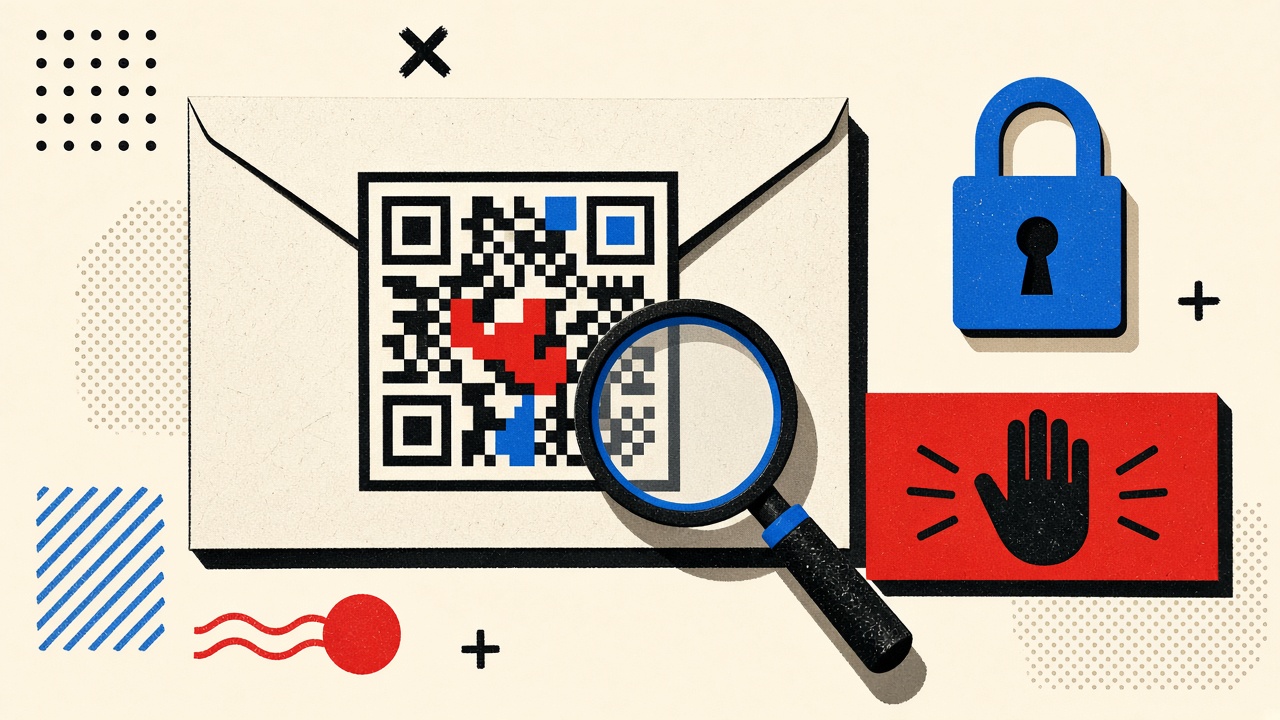
The safe default
Do not scan a QR-code sign-in link from email until you can explain who sent it, why a QR is required, and what domain will receive the session. During a new account signup, legitimate products sometimes show a QR to pair a mobile app with a desktop session. Attackers abuse the same pattern because people scan faster than they read.
A disposable inbox does not make a QR safe. Mailby’s Quick Inbox can receive a signup message for a throwaway test, but scanning still authenticates whatever endpoint the code encodes. Treat safety assessment and address choice as separate decisions.
New account signup context
You might see QR-based sign-in when:
- Desktop web asks you to continue in a mobile app
- A kiosk or TV signup pairs with your phone
- An email contains a QR that deep-links into an app install + auth flow
Boundaries:
- This guide is a non-clicking / non-scanning first procedure.
- Escalation beats cleverness when uncertainty remains.
- Mailby does not auto-detect scams and does not claim phishing immunity—see security.
- Never paste secrets into random “support” chats that arrive after a suspicious QR.
Field procedure (editorial)
Test date: 2026-09-24. Goal: assess a QR presented during signup without granting a session to an unknown host.
Working path
- Freeze. Do not open the camera yet.
- Re-establish context. Did you start signup on a typed URL or official store listing in the last few minutes? If the QR arrived unsolicited by email, treat it as hostile until proven otherwise.
- Find a non-QR path. Prefer “email me a code,” “send magic link to my address,” or password signup you initiated.
- If the product only offers QR on an already-trusted screen (you typed the domain; TLS looks normal; no urgency scare), use the OS camera preview that shows the decoded URL before opening—many phones reveal the host. Confirm the host matches the vendor’s documented domains.
- Compare to out-of-band docs. Vendor help pages should list expected hosts. If they do not match, stop.
- Stop condition: mismatched domain, shortened URL with no expand, pressure language (“account locked in 5 minutes”), or QR inside an unexpected email. Delete/report; do not scan.
Failure / limitation: a tester scanned a QR from a lookalike domain that used a valid TLS cert. Domain looked professional. Session tokens went to the attacker. Lesson: TLS ≠ legitimacy; brand likeness ≠ authenticity.
CISA’s guidance on phishing and multi-factor fatigue is useful background—see CISA phishing guidance (rel="nofollow noopener").
Mechanism
QR codes are just URLs (or app deep links) with better camouflage. Threats include:
- Encoding
https://evil.example/loginthat mimics branding in the page after scan - Encoding an app deep link that triggers an install from a third-party store
- Encoding a session-approval endpoint that confirms attacker-started login (similar to prompt bombing, but visual)
Email safety and QR safety intersect when the message both delivers the code and trains urgency.
| Signal | Benign explanation | Suspicious explanation | Next safe action |
|---|---|---|---|
| QR on HTTPS page you typed | Official pair flow | Homograph domain | Check spelling / punch typed URL again |
| QR only in cold email | Rare legitimate campaign | Phishing kit | Do not scan; visit vendor manually |
| Shortener in QR payload | ESP convenience | Hide final host | Expand safely or refuse |
| “Scan now or lose account” | Bad copywriting | Social engineering | Stop; use official app from store |
| Email from lookalike domain | Misconfigured ESP | Spoof / cousin domain | Compare to prior real mail; report |
| Asks for password after scan | Sometimes SSO | Credential harvest | Close; reset if you typed anything |
Worked example
Nina creates an account on a hardware vendor site she navigated to by typing the domain. The desktop page shows a QR to finish in the iOS app. Camera preview shows https://app.<vendor>.com/pair?.... That host matches the vendor’s documented app domain. She scans, completes pairing, and enables authenticator.
Separately, Nina receives an email: “Finish your signup” with only a QR and no code, from support@<vendor>-secure.net. She does not scan. She opens a bookmark to the real site and sees no pending signup. She reports the message.
For the throwaway evaluation of a different tool, Nina used Quick Inbox to catch a numeric OTP instead of any QR path.
Alternatives and durable mail
- Prefer OTP codes and official app stores over email QR for high-value accounts.
- Durable email for accounts you will keep; temporary only for disposable trials.
- Hardware security keys where supported.
- Longer retention plans do not equal safer QR—see pricing only for retention needs.
Related: how it works, data retention.
Short answers
What causes risky QR sign-in during signup?
Encoded URLs that users trust faster than they verify.
What should I do first?
Confirm you initiated the flow on a typed, known host; prefer non-QR options.
When is a permanent address safer?
Any account with money, identity, or long-term access—QR or not.
What evidence changes the recommendation?
Decoded host mismatches docs; or unsolicited QR email.
Sources, limitations
- Editorial safety procedure 2026-09-24.
- CISA phishing guidance (nofollow).
- Mailby: no automatic scam detection claim.
Non-scanning verification procedure (detailed)
Step A — Provenance
Where did the QR appear? (a) Page I typed, (b) Official mobile app I installed from the store, (c) Email/SMS I did not request, (d) Peer chat. Only (a) and sometimes (b) are candidates for scanning. (c) and (d) default to no.
Step B — Decode without authenticating
Use a camera or QR tool that shows the raw URL string. Copy the host. Compare character-by-character to documentation. Watch for punycode lookalikes.
Step C — Alternate channel
Switch to email OTP into an address you control. For disposable evaluations, Quick Inbox is fine. For banking-class signups, durable mail only.
Step D — Escalation
If the product refuses all non-QR paths and the host is ambiguous, do not create the account from that surface. Use a vendor support URL you typed yourself—not a phone number from the suspicious email.
Uncertainty is a valid outcome
Security writing sometimes pretends every message is clearly good or bad. Real signup flows are messy: new brands, new deep links, new app schemes. When uncertain, not completing signup is success. You can return later from a clean path. Attackers rely on urgency to deny you that option.
Temporary email and false confidence
Readers sometimes open a disposable inbox, receive a QR-bearing message, and feel safer because the address is throwaway. The QR still can hijack a session or install malware. Address choice ≠ payload safety. Keep those decisions separate, and read security for Mailby’s trust posture.
How this differs from a general email-safety hub
Hubs catalog phishing tropes. This page is a QR-specific signup assessment procedure with a signal table, a lookalike TLS failure case, and an explicit statement that disposable mail does not sanitize QR payloads.
Deep links and app-install pivots
Some QR payloads open https:// pages; others open app:// or store listing URLs. Store listings can be phishing too (typosquat apps). Verify publisher names in the official store, not only the QR.
If a QR tries to install an enterprise profile or custom configuration on mobile OS, stop immediately—that is outside normal consumer signup and a common malware path.
Pairing codes as a safer QR cousin
Many honest desktop-to-mobile pair flows show a short numeric pairing code on the desktop and ask you to type it in an already-installed official app. Prefer that over scanning an email QR. You keep a human-readable secret channel tied to a screen you already trust.
Email-delivered QR vs in-app QR
QR on a page you typed ≠ QR inside an unsolicited email. Attackers cannot easily put a QR on the real https://vendor.com you typed without compromising that vendor. They can email you a QR freely. Weight unsolicited email QR near zero trust.
Recording your assessment (for teams)
Security-conscious teams training staff should document:
- Date/time of assessment
- Source surface (typed URL / email / chat)
- Decoded host
- Decision (scan / refuse)
- Alternative path used
That habit beats folklore. It also clarifies that disposable inboxes were never the control that mattered—the decode-and-compare step was.
Team training script and red-team style drills
If you train staff or clients, run a tabletop: show three screenshots—typed vendor page with QR, unsolicited email with QR, chat message with QR. Ask each person to narrate the assessment steps aloud without scanning. Score them on provenance, decode, alternate path, and stop condition.
Red-team variant: register a lookalike domain with valid TLS in a lab, host a fake pairing page, and email a QR to volunteers who opted into the drill. Measure how many scan before checking the host. Use the results to justify slow, boring procedures.
Document that Mailby Quick Inbox may appear in drills as the place a victim receives the bait message. Emphasize again: receiving bait in a disposable inbox does not make scanning safe. The inbox only contained the lure.
For consumer readers without a team: practice once with a legitimate app’s in-product QR on a page you typed. Notice how the camera preview shows a host you recognize. Calibrate to that feeling; treat deviations as hostile.
When a signup offers both QR and email OTP, prefer OTP into the appropriate mailbox class (durable vs Quick Inbox). Reserve QR for device pairing on already-trusted screens. That preference eliminates entire categories of email-borne QR phishing during new account signup.
If you already scanned and landed on a password field you did not expect, stop typing, disconnect network if possible, change passwords for any reused credentials from a clean device, and review security resources for general hardening—not as a malware removal guarantee, but as a calm next-step list.
Checklist card (print-friendly)
Before any signup QR: initiated by me on typed URL? → decode host matches docs? → non-QR path available? → urgency language absent? → app install publisher verified? If any answer is no, refuse the scan. Prefer email OTP into the right mailbox class. Durable for keepers; Quick Inbox for throwaways. Re-read security when something feels off rather than improvising.
Relationship to lookalike domains and parcel scams
QR assessment skills transfer to lookalike shipping emails and fake “share Play Store review” codes. The same provenance → decode → alternate path → stop condition loop applies. Practice on signup QRs builds muscle memory for higher-stakes scams. Keep disposable mail for low-value tests; keep skepticism for every QR regardless of mailbox brand. Safety is procedural.
Conclusion
Assess QR sign-in like any authentication request: origin, domain, urgency, and alternative paths. Disposable email does not sanitize a malicious payload. When you only need a throwaway OTP for a disposable signup, use Quick Inbox—and still refuse suspicious QRs. For deeper trust practices, read security.
Try it on Mailby
Open a receive-only disposable inbox when a short-lived address fits the job — session-bound, with timed purge.