
Message formats and rendering
Rendering inline images in a desktop email client: pitfalls
Inline images need correct MIME multipart/related and Content-ID links; broken CIDs show empty frames—test fixtures before blaming the client.
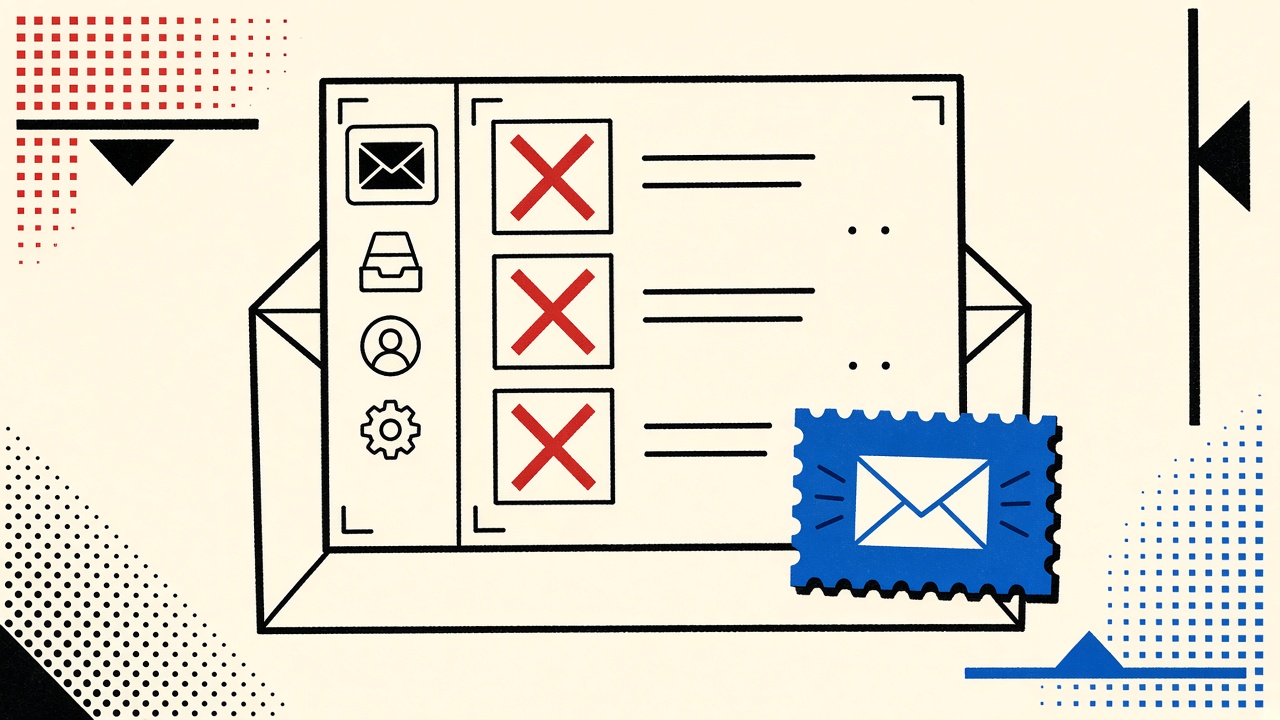
Desktop email clients render inline images when the message uses a valid multipart/related structure and HTML references those parts by Content-ID (CID)—not when you only attach files as multipart/mixed. Broken CIDs, blocked remote images, and security policies produce empty frames that look like “client bugs.” Temporary inboxes help you receive and inspect fixtures; they do not magically fix MIME. Mailby’s safe HTML preview may intentionally differ from a desktop client—compare behaviors deliberately.
Desktop client context
“Desktop email client” means Thunderbird, Apple Mail, Outlook desktop, and similar—not only webmail. They differ on:
- Remote image blocking by default
- CID resolution
- SVG / WebP support
- Mixed content and tracking protection
You might be a developer shipping transactional HTML or a power user diagnosing a broken newsletter. Either way, start from the raw MIME, not from a screenshot argument.
Boundaries: Mailby is receive-only (/inbox); preview sanitization is a security feature (/security), not a pixel-perfect Outlook clone.
Minimal valid vs intentionally broken fixtures
Valid sketch
multipart/relatedtext/htmlwith<img src="cid:logo@example">image/pngwithContent-ID: <logo@example>andContent-Disposition: inline
Broken sketches
- HTML references
cid:logobut part declaresContent-ID: <logo@example>(mismatch) - Image shipped under
multipart/mixedonly—as attachment, not related - HTML uses
https://remote URL while the client blocks remote images - CID present but
Content-Typewrong / corrupt bytes
Field notes (2026-09-24)
Working path: Built a related MIME fixture → opened in a desktop client with remote images blocked → CID logo still visible → proves inline parts do not need network.
Failure path: Same HTML pointed at a CDN URL → client showed empty placeholder until user clicked “Load images” → tracking pixel would also fire on load. Inline CID is the right tool when you need images without remote fetch.
Table: raw part → rendering → implications
| Raw part | Declared type | Observed rendering | Accessibility/security implication |
|---|---|---|---|
| HTML + matching CID PNG | multipart/related | Inline image shown offline | Prefer over remote for essential UI chrome |
| HTML + remote HTTPS img | text/html only | Blocked until user allows | Privacy win; layout shift risk |
| Mismatched CID | related but wrong id | Broken icon / alt text | Looks unprofessional; users distrust |
| SVG inline | image/svg+xml | Often blocked or stripped | Security surface; avoid in email |
| Huge PNG | image/png | Slow / clipped | Keep kilobytes small |
| Attachment-only image | mixed | Shows as paperclip, not inline | Users may miss it |
Mechanism (short)
RFC 2387 defines multipart/related. RFC 2392 describes CID URLs. HTML email is not a browser tab: no reliable external CSS, limited JS (usually none), and aggressive sanitizers. Desktop clients add their own allowlists.
Safe rendering practices:
- Put critical logos in CID parts
- Provide meaningful
alt - Do not rely on background images alone
- Avoid scripts
- Keep payloads small
- Test with remote images blocked and allowed
Worked example: transactional header logo
Goal: Welcome email shows brand mark even when Outlook blocks remote content.
- Generate PNG ≤ 20KB.
- Attach as related part with stable Content-ID.
- Reference exact CID in HTML.
- Send to a receive-only test address (Quick Inbox or Developer inbox).
- Open raw source; confirm structure.
- Open in desktop client with remote images blocked; confirm logo.
- Compare Mailby safe preview—scripts stripped, remote may be neutralized differently; do not assert bit-identical pixels across surfaces.
Failure cases and pitfalls
- Reusing Content-IDs across messages confused some caches historically—prefer unique IDs per send.
- Spaces / missing angle brackets in Content-ID headers.
- Proxying CID through markdown converters that rewrite
src. - Assuming WebP works everywhere—PNG/JPEG remain safer in email.
- Inlining base64 in HTML — bloated, sometimes stripped; related parts are cleaner.
When temporary mail helps (and when not)
Use /inbox to capture fixtures from your ESP quickly. Use /developers when automating MIME assertions in CI for apps you own. Temporary mail does not replace desktop matrix testing (Outlook vs Apple Mail vs Thunderbird).
Related: Next.js welcome email testing.
How this differs from a message-format hub
The hub surveys MIME broadly. This page isolates inline images × desktop clients, with valid/broken fixtures and a remote-vs-CID field test.
Short answers
What causes broken inline images? CID mismatch, wrong multipart type, remote blocking, or unsupported formats.
What should I do first? View raw MIME; verify multipart/related and matching Content-IDs.
When is a permanent address safer? Irrelevant to MIME correctness; use durable mail for accounts you keep, temp mail for fixtures.
What evidence changes the recommendation? If raw MIME is valid but one client fails, file a client-specific bug; if MIME is invalid, fix generation.
Sources, test date, limitations
Limitations: Client versions drift. We do not ship binary fixtures in this article—rebuild from the sketch.
Outlook desktop specifics
Outlook’s Word-based HTML engine historically struggles with certain CSS and with background images. Inline CID logos in <img> tags remain more reliable than CSS background-image. VML conditionals for Outlook add complexity—test them as first-class fixtures, not afterthoughts.
Also watch for:
- Image recompression that blurs logos
- External image proxying in some Microsoft 365 tenants
- Different behavior between classic Outlook and new Outlook
Matrix-test at least one Outlook build if your audience is corporate.
Apple Mail and Thunderbird notes
Apple Mail generally handles CID well but may still block remote images. Thunderbird’s remote-content permissions are explicit and easy to reason about—good for verifying that CID content appears while remote content stays blocked.
Dark-mode inversion can wreck logo contrast. Prefer PNGs with transparency that remain legible on dark backgrounds, or supply dual assets when your ESP supports prefers-color-scheme media queries (support is uneven—verify).
Accessibility
Always set alt text. Inline decorative images can use empty alt; informative logos should name the brand. Color alone must not convey meaning in the surrounding HTML. If the image contains text (avoid when possible), duplicate that text in HTML.
QA workflow with receive-only sinks
- ESP sends fixture to Quick Inbox or Developer inbox.
- Download raw
.emlif available. - Open
.emlin each desktop client. - Compare against web safe preview.
- File bugs against generator or client with MIME attached—not only screenshots.
Screenshots without MIME waste everyone’s time.
Tracking images vs transactional chrome
Marketing remote pixels and transactional CID logos solve different jobs. Do not conflate them in QA. A privacy-conscious client may block remote pixels while still showing CID chrome. Your welcome email should remain understandable with remote content blocked; otherwise you trained users to click “load images” and fire trackers unnecessarily.
Mailby’s sanitized preview leans toward safety. When comparing results, label each screenshot with client + remote-content state so stakeholders do not mix scenarios.
Content-Disposition mistakes
Marking a CID image as Content-Disposition: attachment can force paperclip behavior in some clients even inside multipart/related. Prefer inline for true inline images. Test rather than assume—clients disagree at the edges.
Compression pipeline before MIME
Generate logos at 2x then compress with lossy-aware tools careful of text edges. Over-compressed PNGs look fine in browsers and ugly in Outlook. Include byte-size budgets in the design system for email—not only for web performance.
Building a tiny fixture generator
A twenty-line script that emits .eml files with parameterized Content-IDs saves hours. Feed it good and bad IDs, open the outputs in each client, and store screenshots beside the .eml in the repo under fixtures/email/inline/. Reviewers can reproduce without ESP access. Receive-only inboxes remain useful when you need to see what your hosted ESP actually serializes—generator vs provider transformations differ (CID rewriting, tracking injection, open-proxy image rewriting).
CSP-like thinking for email
Email has no Content-Security-Policy in the browser sense, but you can adopt analogous discipline: default deny remote images for critical transactional templates; allowlist ESP image hosts if remote is required; prefer CID for chrome; ban scripts; ban exotic formats. Publish the policy in your design system so marketers cannot silently reintroduce remote-only headers.
Preheader text interaction with images
Some clients show preheader text beside or above hero images. If your HTML relies on a giant image for the first message, users with images blocked see a blank hole and a useless preheader. Always lead with real HTML text, then CID chrome.
Testing forwarded messages
Forwarding can break CID relationships because some clients re-MIME the message. If your workflow expects people to forward welcome mail, test that path. Critical links should live in HTML text, not only inside image maps.
AMP for Email and related experiments
Experimental interactive email formats change the rendering landscape again. Keep transactional essentials in boring multipart HTML+CID so they survive when fancy formats fail. Use receive-only sinks to capture what the ESP actually emitted after AMP transforms.
Reader takeaway box
Match the tool to the downside. Temporary receive-only mail excels at short verification and throwaway curiosity. Durable addresses and aliases excel at recovery, money, travel, and reputation. Product pages: /inbox, /pricing, /data-retention, /security, /developers, /how-it-works.
Retina assets without huge payloads
Supplying 3x logos balloons MIME size and triggers clipping in some corporate gateways. Stick to ~2x with sensible compression. Measure end-to-end message size after ESP transforms—gateways care about the final bytes, not your design export.
Corporate gateway rewriting
Secure email gateways sometimes rewrite or proxy images, breaking CID references or converting them to remote URLs that then get blocked. If only corporate Outlook users report broken logos while consumer clients look fine, suspect the gateway—not your MIME generator alone. Reproduce by sending the same .eml through the gateway path and comparing Message-IDs and MIME trees before vs after.
Ask IT whether outbound or inbound rewriting applies to your ESP IPs. Whitelisting transactional streams is a policy conversation; documenting the MIME contract remains your job as the sender.
Checklist before shipping a template
Confirm multipart/related; matching Content-IDs; inline disposition; alt text; remote images optional; size under gateway limits; tested in Outlook, Apple Mail, Thunderbird with remote content blocked; captured via /inbox or /developers for the ESP-emitted bytes. Sign off only when the checklist is green.
Why this is not the multipart hub
General MIME surveys cover alternative parts, encodings, and headers. Here the job is narrower: make inline images work on desktop clients, prove it with remote content blocked, and know when ESP or gateway rewrites are the real culprit.
Conclusion
Inline images are a MIME contract, not a Photoshop export setting. Build related parts with matching CIDs, test with remote images blocked, and treat safe web previews as a different renderer. Capture fixtures with Quick Inbox when that preview path supports your inspection workflow—and still verify on real desktop clients before you ship.
Try it on Mailby
Open a receive-only disposable inbox when a short-lived address fits the job — session-bound, with timed purge.