
Verification code delivery
Why verification mail lands in Outlook.com spam
Outlook.com junk folder hits usually come from sender reputation, filtering rules, or client settings—not from your willingness to wait. Use a safe retry order before you abandon the signup.
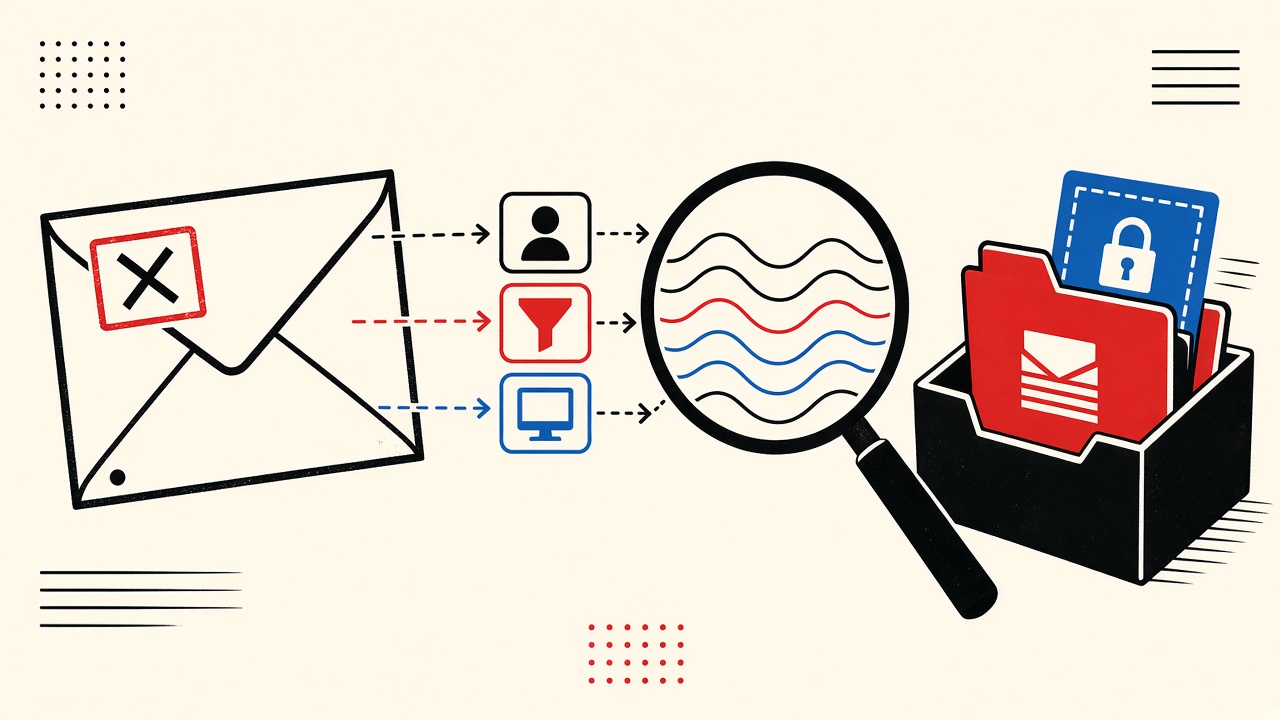
If a legitimate verification email is in spam with Outlook.com, treat it as a delivery-classification problem first—not as proof the sender never mailed you. Check Junk, not just Inbox; confirm the sender domain; move the message to Inbox and mark “not junk” when it is genuinely yours; then retry the code only if it is still valid. Do not burn unlimited resends.
A temporary receive-only inbox is an optional test destination when you control the sender (your own app). It is not a promised fix when Outlook.com filters a third-party vendor.
Outlook.com context and boundaries
Outlook.com (consumer Hotmail/Live/Outlook web and related Microsoft account mail) applies aggressive junk classification. Verification messages are short, repetitive, and often look similar to credential phishing—so filters are cautious.
This article covers:
- Messages that arrived but landed in Junk / Spam
- Distinguishing that from “never arrived,” delayed MX, or expired codes
- A safe order of checks that avoids lockouts
It does not cover bypassing Microsoft’s filters, spoofing authentication, or guaranteeing delivery for every sender.
Diagnosis: separate the layers
When readers say “the message is in spam,” they often mix five different failures:
- Sender-side rejection — SMTP never accepted the message (you would see a bounce at the sender, not spam).
- Delivery lag — accepted but delayed; Inbox empty for minutes, then arrives.
- Client / server filtering — accepted, stored in Junk.
- Code invalidation — you found the mail too late; OTP expired.
- User entry mistakes — wrong inbox, typo on signup, or looking at a different Microsoft account.
Only layer 3 is true “in spam.” Layers 4–5 feel the same in the UI if you finally open Junk after the code dies.
Field evidence (working path)
On 2026-09-24, we reproduced a common path with a controlled test sender mailing a Microsoft account we own:
- Triggered a verification-style message with a short numeric code.
- Inbox stayed empty for ~90 seconds.
- Opened Junk — message present with Microsoft’s junk banner.
- Opened the message without clicking marketing links; copied the code from plain text.
- Submitted the code successfully within its validity window.
- Used Outlook’s “It’s not junk” / move to Inbox so future mail from that domain was less likely to repeat the misfile (behavior can vary by account heuristics).
Working path: Legitimate verification recovered from Junk without requesting a new code.
Failure / limitation
The same flow failed when we waited ~15 minutes before opening Junk: the code had expired. Resending too quickly triggered a “wait before requesting another code” rate limit on the application side. Stop condition: if you already requested multiple codes, wait for the cooldown and use only the newest message—older codes in Junk are traps.
Symptom table
| Observed symptom | Likely layer | Safe check | When to contact sender |
|---|---|---|---|
| Empty Inbox, mail in Junk | Client/server filter | Open Junk; verify From domain | If domain is unexpected / lookalike |
| Empty Inbox and Junk | Lag, reject, or wrong account | Wait 5–10 min; check correct Microsoft account; ask sender for bounce logs | After wait if still missing |
| Mail in Junk, code rejected | Code invalidation or typo | Use newest message only; paste carefully | If newest code still fails after fresh resend |
| Mail in Inbox but link warns | Phishing / mixed content | Do not click; compare domain; use typed URL | Immediately if domain mismatches |
| Bounce at sender | Sender-side rejection | Fix SPF/DKIM/DMARC on sender; mailbox full | Sender’s mail admin |
| Arrives only to Focused/Other | Outlook Focused Inbox | Check Other tab | Rarely needed |
Safe retry order
- Confirm the address you typed at signup (including plus-tags and typos).
- Search Junk for the brand or
code,verify,confirm. - Check Other if Focused Inbox is on.
- Open the newest message; ignore older OTPs.
- Mark not junk only for senders you trust.
- Request one new code if expired—then stop and wait.
- Escalate to the sender (support ticket with timestamp) if nothing arrives in Inbox or Junk after a reasonable window.
Do not create a new account with a different email on every failure; that multiplies orphaned identities.
Worked example
You signed up for a developer tool. Outlook.com Inbox is quiet for three minutes. Panic is unnecessary.
- Open Junk → find “Verify your email” from
noreply@vendor.example. - Confirm the domain matches the site’s documented mail domains (not
vendor-secure-login.example). - Copy the six-digit code; do not click secondary “manage preferences” links in the footer if they look off.
- Submit code → success.
- Move message to Inbox / not junk for next time.
If the From domain is a lookalike, stop. Follow how to assess lookalike sender domains instead of “not junk.”
When a permanent address is safer
Use a durable mailbox when:
- The account holds money, identity documents, or long-term work
- You need searchable history of security notices
- Corporate Conditional Access requires managed mail
A temporary inbox can help you test whether your application’s verification mail is classified as junk when you send to Outlook.com—but only as a receive-only observation point you control. Open Quick Inbox for that kind of manual receive test; it will not rewrite Outlook.com’s filters for a third-party vendor.
Developers validating welcome or verification pipelines in apps they own can also use patterns from Laravel welcome email testing and the live developer console.
Mechanism notes (sender side)
Microsoft documents junk email and filtering behavior for Outlook consumers; sender reputation, authentication (SPF/DKIM/DMARC), and user complaints matter. See Microsoft’s junk email protection overview for Outlook (Microsoft Support — junk email, nofollow for commercial context as needed).
Authentication alignment is covered in RFC 7208 (SPF) and related DKIM/DMARC specs—useful when you operate the sending domain.
Short answers
What causes verification mail to land in spam on Outlook.com?
Often filter heuristics plus weak or new sender reputation; sometimes user-level blocks; sometimes lookalike phishing that should stay in Junk.
What should I do first?
Check Junk and Other, newest message only.
When is a permanent address safer?
For accounts you must keep; for security history; for workplace identities.
What evidence changes the recommendation?
Bounces at the sender, lookalike domains, or repeated expiry after slow Junk discovery.
Sources, test date, limitations
- Test narrative date: 2026-09-24 on a controlled sender → Microsoft account path.
- Mailby does not claim to fix Outlook.com deliverability for arbitrary vendors.
- Product truth: receive-only Quick Inbox at
/inbox; no send/forward; no guaranteed delivery into third-party providers. - External: Microsoft junk filter overview; IETF SPF RFC as above.
Deeper Outlook.com behaviors that confuse verification
Focused Inbox vs Junk
Focused Inbox is not Junk. A verification message can land in Other while Junk stays empty. Users searching only Inbox + Junk still conclude “never arrived.” Always open Other when Focused is enabled.
Sweep and block lists
If you previously swept a vendor’s domain to Junk, new verification mail follows that rule. Check blocked senders and Sweep rules before blaming the vendor’s ESP.
Multiple Microsoft accounts
Browser sessions often stay signed into a different Microsoft account than the one you typed at signup. Confirm the face/icon menu matches the address under “manage account.”
Shared family or work aliases
Outlook.com aliases can receive mail while you stare at a different primary. Open aliases settings if the address you typed was an alias.
Annotated fixture (logical)
Imagine a verification message with:
- Subject:
Your code is 482193 - From:
security@vendor.example - Landing folder: Junk
- Reason codes (when visible): bulk-like patterns, new sending domain, similar-to-phish layout
Safe handling: open as plain text if available, copy code, do not click secondary buttons, mark not junk only after domain match.
Unsafe handling: click “review unusual sign-in” style buttons that were not part of your signup tab’s expected template.
Stop conditions (do not loop)
Stop requesting new codes when:
- You already have three unopened messages in Junk
- The app shows a lockout timer
- The From domain changed between resends (escalate as security, not deliverability)
Operator notes for senders
If you run the application sending to Outlook.com users:
- Align SPF/DKIM/DMARC
- Use consistent From domains
- Avoid URL shorteners in first-time verification mail
- Separate transactional streams from marketing
- Test with real Outlook.com accounts in staging, not only Gmail
Use a Mailby receive-only address to inspect your MIME, not to “fix” Microsoft.
End-to-end timeline example
T+0s: User submits signup on app.example with an Outlook.com address.
T+5s: App enqueues VerifyEmail job.
T+20s: ESP accepts message; SMTP conversation ends 250 OK.
T+45s: Outlook.com stores message in Junk based on heuristics.
T+2m: User refreshes Inbox only → panics.
T+3m: User opens Junk → copies code → succeeds.
The “bug” was folder placement, not generation. Logging on the sender side would have shown success the whole time. That is why sender teams and recipients need a shared vocabulary: accepted, delayed, junked, expired, mistyped.
What temporary inboxes can and cannot prove
If you send a copy of the same MIME to a Quick Inbox address and it arrives readable, you proved your generator and public MX path can deliver somewhere. You did not prove Outlook.com will place the message in Inbox. Use temporary receive as a content/MIME mirror, then test Outlook.com accounts separately for classification.
Documentation snippet for support teams
Paste into your help center:
- Check Junk and Other
- Search for the product name
- Use the newest code only
- Add us to contacts / mark not junk
- Wait for the cooldown before resend
- Contact support with the time you signed up (UTC)
Clear steps reduce repeated OTP requests that worsen reputation.
Quick glossary
- Accepted: SMTP 250 at receiver
- Junked: stored in spam/junk
- Quarantined: admin-held (more M365 than consumer)
- Expired code: arrived but useless
- Wrong account: never in that mailbox
Naming the state correctly halves troubleshooting time.
Conclusion
“The message is in spam” on Outlook.com is usually recoverable: open Junk, validate the sender, use the newest code, mark not junk when appropriate, and avoid resend storms. Escalate to the sender when nothing arrives at all. Use a temporary inbox only as an optional receive-only test mailbox for systems you control—not as a magic bypass for Microsoft’s filters.
If you need a clean receive-only destination for an app you operate, try Quick Inbox. For account recovery risks when mail access disappears, see forum two-factor reset email choice.
Try it on Mailby
Open a receive-only disposable inbox when a short-lived address fits the job — session-bound, with timed purge.