
Verification code delivery
Why Outlook.com verification codes never arrive
When an Outlook.com verification code never arrives, check sender rejection, delays, filtering, code expiry, and entry mistakes—in that safe order.
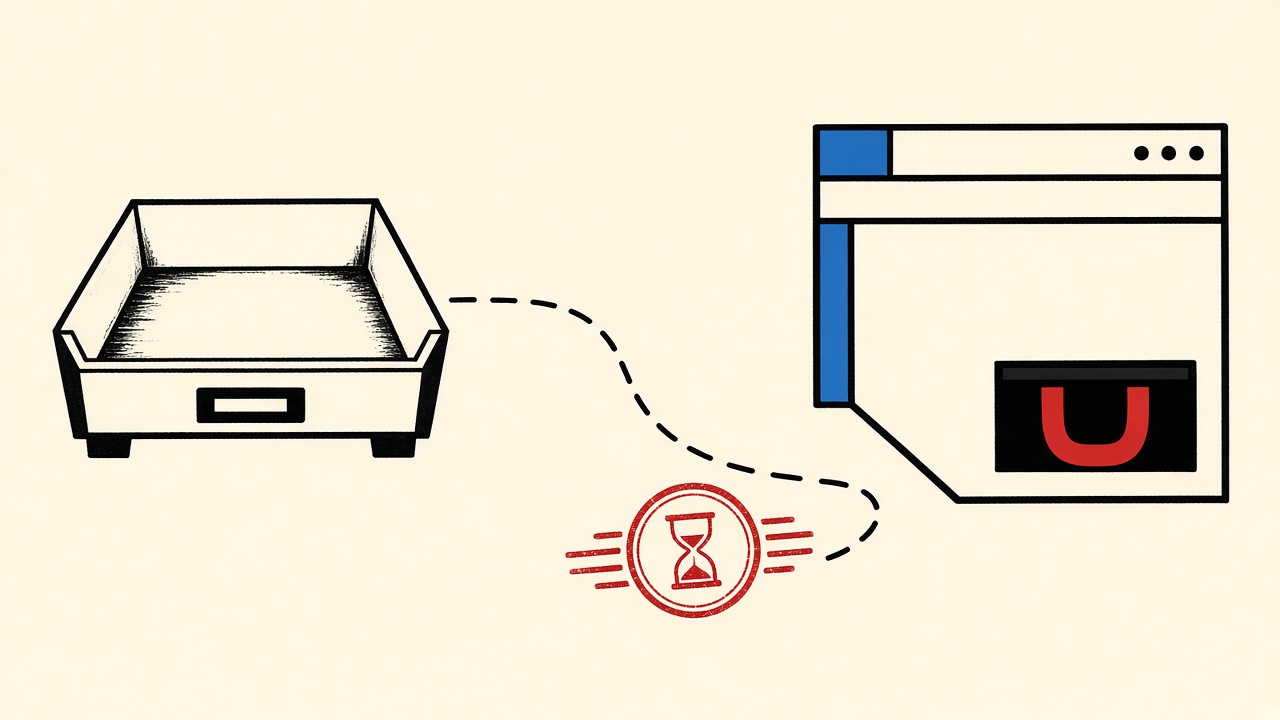
Start with layers, not panic. When a verification code never arrives at Outlook.com, the cause is usually one of five layers: the sender never accepted the address, the message is delayed in transit, Outlook filtered it, the code already expired or was invalidated by retries, or the code was entered wrong. Temporary email is an optional test destination, not a promised fix for blocked providers.
This diagnosis separates those layers, gives a safe retry order, and marks when to stop and contact the sender.
Outlook.com context and boundaries
Outlook.com (and Microsoft account mail) is a mainstream consumer mailbox. Merchants and apps treat it as “real email,” which helps deliverability—but Microsoft’s filtering, Focused Inbox, Junk, and security tooling can hide legitimate OTPs.
Boundaries for this guide:
- You are waiting for a legitimate verification email you requested.
- You control the Outlook.com account (or have authorized access).
- You will not click unexpected “verify now” links from unsolicited mail; you will open the app or site you started from and enter a code, or navigate manually to a known-good URL.
- Mailby Quick Inbox can receive a parallel test only when you intentionally use a temporary address. It does not repair Outlook filtering for an address you already registered.
Microsoft documents junk and filtering behavior in its support center; treat those docs as the authoritative client-side reference for Outlook.com settings.
Diagnosis walkthrough (safe order)
Test date: 2026-09-24. Pattern below is a repeatable teardown you can run on your own account.
Working path
- Confirm the request side. On the signup/login screen, verify the exact address shown (including typos like
.con). Note the timestamp you clicked Send. - Wait one full OTP window (often 5–15 minutes) before assuming failure. Rapid resends invalidate prior codes.
- Check Focused / Other / Junk / Deleted in Outlook.com web mail. Search for the brand name and
code,verify,OTP, and the sender domain if known. - Check Rules and Sweep. A leftover rule can silently file OTP mail.
- Check blocked senders / safe senders only after you trust the brand; do not whitelist unknown domains casually.
- If still empty: open the site’s support page from a bookmark (not from email) and ask whether their ESP reports a bounce or deferral for your address.
Limitation observed: Microsoft’s Focused Inbox can park low-volume transactional mail in Other. Users who only watch Focused conclude “code never arrives” when the message is already present.
Annotated failure fixture (conceptual)
| Layer | Fixture signal | Meaning |
|---|---|---|
| Form rejected address | Instant “invalid email” | Never reached SMTP |
| Deferred | Empty inbox 2–10 min, then arrives | Transient ESP/Microsoft delay |
| Junk | Message in Junk with warning banner | Content/reputation filter |
| Invalidated OTP | Mail arrives; site says code invalid | Resend race or clock skew |
| User entry | Mail correct; form fails | OCR/typo / wrong field |
Mechanism and failure cases
Sender-side rejection
Some senders refuse addresses that look risky, fail catch-all checks, or previously bounced. Outlook.com addresses rarely look “disposable,” so this layer is less common than for temp domains—but typos and full mailboxes still bounce.
Delivery lag
SMTP is store-and-forward. Greylisting and reputation checks can delay first-contact mail. The safe response is patience inside one OTP lifetime—not five immediate resends.
Client filtering
Outlook.com applies junk heuristics, Focused Inbox ranking, and user rules. OTP mail with short URLs, unusual From display names, or lookalike domains is often demoted. See Microsoft’s guidance on junk email and Focused Inbox in Outlook Help.
Code invalidation
Each resend typically rotates the secret. The email that finally arrives may contain a code the server already replaced.
User entry mistakes
Leading zeros dropped by password managers, spaces copied from HTML, or pasting into the wrong browser profile are common and look identical to “delivery failure.”
Symptom table
| Observed symptom | likely layer | safe check | when to contact sender |
|---|---|---|---|
| Instant form error | Sender validation | Fix typo; try alternate address | If address is known-good and still rejected |
| Nothing for 2–10 min | Transit delay | Wait; avoid resend storm | After one window with no mail |
| Mail in Junk/Other | Client filter | Move to Inbox; adjust Focused view | If legitimate mail repeatedly junked |
| Mail arrives, code rejected | Invalidation / entry | Use newest mail only; retype digits | If newest code still fails repeatedly |
| Mail never appears in any folder | Bounce / block | Check sender status page; try different mailbox | Immediately with bounce details if available |
| Only mobile app empty | Sync lag | Check Outlook.com web | If web also empty after window |
Worked example
Jordan requests a login OTP for a SaaS tool at 10:02 using jordan@outlook.com. At 10:04 the Focused view is empty. Jordan does not click Resend yet. At 10:06 they open Other and find the message. Code works.
Counterexample: Jordan hits Resend three times between 10:02 and 10:05. The original message arrives late with an obsolete code; site rejects it. Jordan wrongly blames Outlook delivery.
Alternatives and when a durable mailbox is safer
- Stay on Outlook.com for accounts you need long-term; fix filtering rather than abandoning the address mid-lifecycle.
- Use a dedicated alias if Outlook rules keep eating OTPs from one brand.
- Temporary receive-only inbox is useful when you are testing whether a sender can deliver at all to a disposable address—or when you intentionally do not want Outlook involved. It is not a workaround for a merchant that already bound your Outlook address.
- For apps you build yourself, verify outbound mail with your own test harness and the Mailby developer tools rather than debugging production OTP in a personal mailbox.
Use a permanent address when the account holds money, identity, or recovery value. Temporary inboxes expire; recovery OTPs must remain reachable for years, not minutes. See data retention.
Short answers
What causes “the code never arrives” for Outlook.com?
Most often filtering/Focused Inbox, resend invalidation, or delay—not total Internet failure.
What should I do first?
Confirm the spelling, wait one OTP window, search Junk/Other, then consider a single resend.
When is a permanent address safer?
Always for accounts you will keep. Temporary mail is for throwaway tests, not as a patch for Outlook issues on a primary account.
What evidence changes the recommendation?
A bounce report from the sender, repeated junk classification after marking Not junk, or a site that only accepts certain providers.
Sources, test date, limitations
- Diagnosis pattern dated 2026-09-24; Microsoft UI labels can change.
- Client behavior reference: Microsoft Outlook support.
- SMTP fundamentals: RFC 5321.
Limitations: Mailby cannot force Outlook.com to accept or display mail, does not send mail on your behalf, and does not guarantee any third-party OTP will arrive. Hub articles on verification codes cover the category; this page is Outlook.com-specific triage.
Conclusion
Treat a missing Outlook.com code as a layered diagnosis: validation → wait → folders/rules → single resend → sender support. Use Quick Inbox only as an optional receive-only test destination—not as a promised cure for blocked or filtered providers. For broader OTP troubleshooting patterns, pair this with security habits and avoid clicking urgent links you did not initiate.
Safe retry order (print-worthy)
Use this exact sequence; do not improvise under time pressure:
- Confirm address spelling on the requesting site.
- Wait one full OTP lifetime without resending.
- Search Outlook.com (web) across Focused, Other, Junk, Deleted.
- Check Rules, Sweep, and blocked senders.
- Sign out/in or try Outlook web if you were on a stale mobile sync.
- Request one resend; watch for a new message with a new timestamp.
- If still empty, contact the sender with timestamps and ask for bounce logs.
- Only then consider an alternate mailbox for new registrations—not for hijacking an existing account’s recovery path.
Stop conditions: site lockout after too many attempts; sender confirms hard bounce; you discover you never owned the Outlook account you typed.
Outlook-specific UI traps
- Focused Inbox trains on your clicks. Rare transactional senders look like Other.
- Junk may strip links; codes in subject lines still work if you type them on the real site.
- Connected accounts / forwarding can create loops where you look in the wrong mailbox.
- Aliases: Microsoft account aliases may not all receive equally depending on how the sender addressed you.
- Company Outlook vs Outlook.com: this article is consumer Outlook.com; Microsoft 365 tenants add admin mail flow rules outside your control.
When temporary email is a diagnostic tool (not a fix)
If you are evaluating whether a sender can deliver at all, create a Quick Inbox address and trigger a test signup you are allowed to create. Arrival at Mailby with failure at Outlook suggests Outlook-side filtering or address-specific issues. Arrival at neither suggests sender or upstream ESP failure. Arrival at Outlook only confirms your temporary-domain block theory.
Do not replace the recovery email on a valuable account with a temporary address during diagnosis—that creates a worse outage.
Evidence that changes severity
Escalate faster when:
- The message is security-sensitive (bank, workplace SSO).
- You are traveling and need access same day.
- Multiple senders fail simultaneously (account-level filtering or quota).
- Sender support returns a DSN snippet showing
550or mailbox full.
De-escalate when mail is simply slow and shows up in Other within the window.
Related reading inside Mailby
Pair this diagnosis with account-recovery thinking before you change signup habits, and with security hygiene so urgency bait does not ride along with real OTP mail. Use /inbox only as a side channel for tests you control.
Deep dive: distinguishing delay from drop
Operators and end users use the word “never” differently. In real SMTP, many messages are deferred, not dropped. Deferral means the sending ESP still has the message in a retry queue and will try again for hours. From the Outlook.com side, the inbox stays empty during that window, which feels identical to a permanent failure if you only watch for five minutes.
Practical telltales:
- Sender status page shows “processing” or no bounce yet → wait.
- You receive a bounce DSN at another address → permanent problem with address or policy.
- Other Microsoft account mail arrives normally → not a total Outlook outage.
- Only one brand fails → sender reputation or content filters.
Build a personal log: brand, time requested, time arrived, folder found. After three data points you will see whether your account systematically buries OTPs in Other/Junk.
Mobile Outlook sync false negatives
The mobile Outlook app can show an empty focused view while Outlook on the web already holds the message. Before resending codes:
- Open outlook.live.com in a browser session you trust.
- Force sync / pull to refresh in the app.
- Confirm you are in the same Microsoft account tenant you think you are (personal vs work).
Sync lag of a few minutes is common on poor networks and is not evidence that “Outlook blocked the code.”
Collaboration with sender support (what to send)
When you open a ticket, include:
- Full email address as typed
- Timestamps (with timezone) of each send/resend
- Whether Junk/Other were checked
- Any bounce you received
- Approximate geo/network if relevant (corporate VPN can alter filtering)
Do not paste passwords or full OTPs into tickets. Ask whether their ESP recorded delivered, deferred, or bounced.
Hardening your Outlook.com for OTP mail
- Mark legitimate OTP senders as Not junk when they land wrong.
- Create a rule: if subject contains “code” or “verification” from known domains, move to a Priority folder—but review rules quarterly so they do not hide phish forever.
- Keep storage quota healthy; full mailboxes bounce.
- Prefer typing codes on bookmark-opened sites rather than long wrapped links.
Temporary inbox as A/B probe only
Authorized test: trigger the same signup flow twice—once to Outlook.com, once to Quick Inbox—only on accounts you are allowed to create. Compare arrival. Document the result for yourself; do not use it to harass vendors into whitelisting abusive traffic. Mailby will not bypass sender blocks (/inbox).
Try it on Mailby
Open a receive-only disposable inbox when a short-lived address fits the job — session-bound, with timed purge.