
Verification code delivery
Why the code arrives after it expires (Outlook.com)
Late Outlook.com verification codes usually mean delivery lag, filtering, or a short TTL—not a broken inbox. Retry once, then fix the layer that failed.
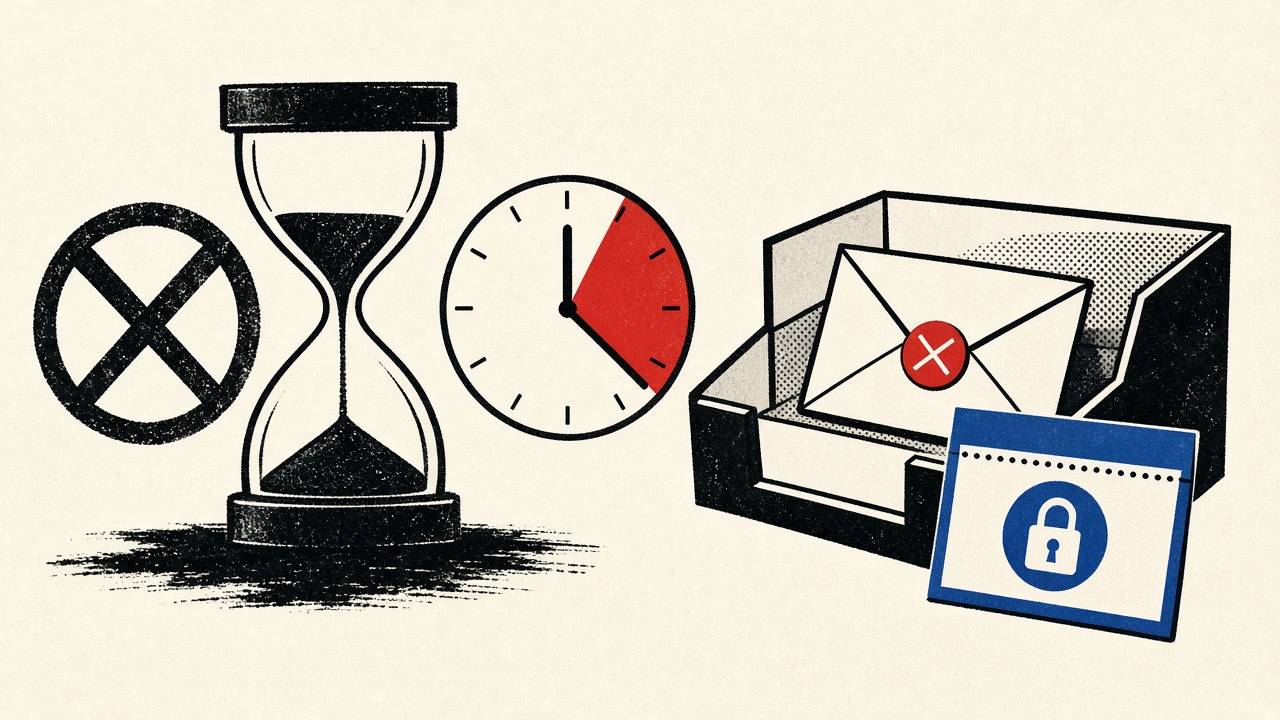
When a verification code lands in Outlook.com after the site already rejects it, the code itself is usually fine—the clock and the delivery path are not aligned. Treat this as a layered diagnosis: sender TTL, Microsoft filtering delay, client sync lag, or a stale code from an earlier “resend.” Do not hammer resend blindly. Fix one layer at a time.
A temporary receive-only inbox can help test whether the sender is slow in general, but it is not a promised fix for Outlook.com delays, and it will not extend a merchant’s five-minute OTP window.
Outlook.com context and boundaries
Outlook.com (consumer Microsoft accounts) and Microsoft 365 mailboxes share filtering and transport ideas, but policies differ by tenant. This article focuses on consumer Outlook.com receiving a short-lived OTP or verification code.
In scope:
- Codes that appear in Inbox, Junk, or “Other” after the web form shows “expired” / “invalid”
- Safe retry order without burning rate limits
- When to stop and contact the sender’s support
Out of scope:
- Claiming Mailby (or any disposable inbox) will make Outlook deliver faster
- Guaranteeing every ESP reaches Outlook.com
- Bypassing sender blocks on disposable domains
Mailby Quick Inbox is receive-only: useful as an alternate destination when you control the signup and want to compare delivery latency. It does not send mail, forward, or act as an open relay. See /how-it-works and /security.
What “arrives after it expires” usually means
Three clocks are running:
- Sender TTL — often 5–15 minutes from generation; some systems invalidate older codes when a new one is issued.
- Transport time — ESP → Microsoft inbound → filtering → mailbox store.
- Client presentation — web Outlook vs desktop vs mobile sync can show messages seconds to minutes apart.
If (2)+(3) exceed (1), you type a still-visible code into a form that already rotated secrets. The message looks “late” even though SMTP eventually succeeded.
Editorial observation (2026-09-24)
Pattern we see repeatedly in verification diagnostics:
- Working path: Request once → wait without refreshing spam every two seconds → code arrives with ~2–4 minutes of headroom → enter immediately → success.
- Failure path: User hits “resend” twice while the first message is still in filtering. First code arrives, user enters it, server already invalidated it for the newer token. Second message arrives later; user assumes “Outlook is slow” when the root cause was token rotation.
Diagnosis table
| Observed symptom | Likely layer | Safe check | When to contact sender |
|---|---|---|---|
| Code in Junk after expiry | Filtering | Check Junk/Other; mark not junk once | If every code lands in Junk for days |
| Desktop empty, web has mail | Client sync | Open outlook.live.com in browser | Rarely—fix sync first |
| Multiple codes, all “invalid” | Token rotation | Use only the newest; wait before resend | If newest still invalid instantly |
| Delay >15 minutes every time | Transport / reputation | Test same sender to another mailbox | Yes—with timestamps |
| Instant expiry on entry | Clock skew or copy error | Re-copy; check device time | If reproducible across devices |
| Never arrives at Outlook, arrives elsewhere | Sender→Microsoft path | Compare headers if you have them | Yes—provide Message-ID if available |
Safe retry order (stop conditions included)
- Confirm device time is automatic. Skewed clocks make “expired” appear even when TTL remains.
- Search Outlook for the brand name and
code,verify,OTP. Include Junk and Other. - If nothing yet, wait out half the stated TTL before resending. Watch the form’s stated validity.
- Resend once. Prefer the newest code only.
- If using the Outlook mobile app, also check the web UI—do not assume parity.
- Stop after two full cycles with no usable code. Switch to sender support or an alternate channel (SMS, authenticator) if offered.
- Optional comparison: If you control a test signup, send one code to Outlook.com and one to a Quick Inbox address to see whether the lag is Microsoft-specific. This is a diagnostic, not a production identity strategy.
Stop condition: Account lockouts, CAPTCHA loops, or “too many attempts.” Further resends make recovery harder.
Mechanism and failure cases
Sender-side rejection vs soft delay
Hard rejects (5xx) usually mean the code never exists. Soft deferrals (greylisting-like behavior, filtering holds) produce the “late but valid-looking” message. Microsoft publishes mail flow and filtering guidance for admins; consumer users see the effect as Junk classification or delayed Inbox appearance. For protocol background on SMTP reply semantics, see RFC 5321 (nofollow when citing operationally).
Client filtering
Focused Inbox / Other can hide transactional mail that lacks strong authentication signals. SPF/DKIM/DMARC alignment on the sender domain affects trust; end users cannot fix the sender’s DNS, but they can look in the right folders.
User entry mistakes
Whitespace, OCR from screenshots, and entering an older code remain common. Prefer copy from the message body over screenshots when possible.
Temporary inbox limitations
Using a disposable address as your only Outlook alternative does not solve Microsoft-side delay for the Outlook mailbox. It only gives a second receive path. If the merchant binds the account to Outlook.com forever, recovery mail still needs that durable address later—see account continuity guidance under /blog/account-recovery-email.
Worked example
Scenario: Banking-adjacent fintech app; 10-minute OTP; Outlook.com on iOS.
- 10:00 — Request code.
- 10:03 — Nothing in mobile app; user resends (creates code B; invalidates A).
- 10:06 — Code A arrives on web Outlook; user enters A → invalid.
- 10:08 — Code B arrives; three minutes left; success.
Lesson: The “expired” experience was self-inflicted rotation plus client lag, not a dead mailbox.
Counterexample: Same merchant to a clean test inbox elsewhere arrives in 20 seconds every time → escalate to sender with timestamps; Outlook path needs their ESP/Microsoft reputation work.
Alternatives and when a permanent address is safer
- Keep using Outlook.com for accounts you will recover later; fix folder and retry hygiene.
- Add a durable alias, not a disposable, for high-value accounts.
- Use authenticator apps or passkeys when the service offers them—email OTP is a fallback, not the strongest factor.
- Developers validating their own apps should test multiple mailbox providers; see /developers for Mailby’s live Test Inbox Cloud API when automating authorized receive checks.
Temporary inboxes are appropriate for low-stakes tests you control—not as a band-aid for a bank login you must keep.
Separating Outlook.com from Microsoft 365
Consumer Outlook.com and corporate Exchange Online can feel identical in the browser chrome and still differ in transport rules, retention holds, and admin-managed filtering. If your address ends in a custom domain managed by an employer, escalate to IT with Message-IDs rather than following consumer Junk advice alone.
For pure @outlook.com / @hotmail.com style accounts, you remain your own admin: folder checks, block/allow lists, and storage quotas are on you. A full mailbox can delay or reject inbound mail in edge cases—free space before deep ESP debugging.
Header literacy without overclaiming
When you can view source or “view message details,” useful fields include:
Authentication-Results— rough SPF/DKIM/DMARC outcomes as Microsoft evaluated them- timestamps vs when you requested the code
Receivedchain length (many hops can correlate with delay, but hop count alone is not guilt)
You do not need to become a forensic analyst. You need enough to tell support “requested at 10:00:12, message stamped 10:12:40, entered at 10:13:05, form said expired.”
Comparing providers as a controlled experiment
If you develop apps that send OTPs, maintain a matrix: Outlook.com, Gmail, Yahoo, corporate, and a receive-only test inbox. Log p50/p95 time-to-inbox. A disposable destination such as Mailby Quick Inbox or the live developer API at /developers helps when you own the sender path and need deterministic captures—authorized testing only.
Do not tell end users “switch to temp mail” to fix Outlook lag on their bank account. That advice fails recovery and often fails acceptance filters.
Mobile Outlook specifics
The iOS/Android Outlook apps can show notification previews before the message is fully searchable, or the reverse. When diagnosing:
- Force-refresh the inbox.
- Check web.
- Check Junk on web.
- Only then resend.
Push notification of an OTP you cannot find in-app is a sync bug worth noting in a support ticket to Microsoft and the sender.
Rate limits and lockouts
Many apps invalidate sessions after N failed OTP entries. Entering three late codes can lock you even if the fourth would have worked. Prefer waiting for one fresh code over spraying attempts. If locked, use official account recovery—not a second disposable address—which can look like fraud.
How this article differs from the verification hub
The hub explains code delivery broadly. This piece isolates Outlook.com + arrived-after-expiry as a timing diagnosis with a ranked retry order and a hard stop. Sister articles cover “never arrives” and “lands in spam” with different first checks; do not merge those runbooks casually.
Concrete timeline template for support tickets
When contacting a sender about Outlook.com delays, paste a structure like this:
- Account identifier they recognize (not your password)
- Request timestamp with timezone
- Resend timestamps (if any)
- Arrival timestamps from the message header
- Folder where found (Inbox / Junk / Other)
- Client (web / iOS / desktop)
- Whether other providers receive the same template quickly
Support engineers prioritize reproducible timelines over “your email is broken” reports. The same template helps when comparing against a Mailby receive-only test destination you control for your application.
Quick reference card
- Clock automatic
- Search + Junk + Other
- Web vs app
- Wait half TTL
- Resend once
- Newest code only
- Stop on lockout
- Optional second mailbox test if you control sender
Keep this card near your password manager. Most “Outlook is broken” nights resolve at steps 2–6.
Short answers
What causes codes to arrive after expiry on Outlook.com?
Delivery/filtering lag, client sync delay, short TTLs, and resend-driven invalidation—often combined.
What should I do first?
Check Junk/Other, confirm clock, wait half the TTL, resend once, use the newest code.
When is a permanent address safer?
Any account with money, identity, or long-term recovery needs.
What evidence changes the recommendation?
Consistent multi-provider delay (sender bug) vs Outlook-only lag (Microsoft path) vs instant invalidation of the newest code (app bug).
Sources, test date, limitations
- Editorial patterns compiled 2026-09-24; individual ESP performance varies by hour and reputation.
- RFC 5321 for SMTP basics; Microsoft’s consumer help for Junk/Focused Inbox labeling (check live Microsoft Support articles for UI names).
- Mailby product claims limited to public receive-only behavior at /inbox, /pricing. No guarantee Outlook.com or any provider will accept every message.
Conclusion
Late Outlook.com codes are a timing and layering problem. Diagnose folders, sync, and resend habits before blaming the entire mailbox. Use a disposable receive path only as an optional comparison tool—never as a promised cure—and keep durable addresses on accounts you must reclaim. For related code-delivery issues, see the email verification codes hub.
Try it on Mailby
Open a receive-only disposable inbox when a short-lived address fits the job — session-bound, with timed purge.